
How to Set Up a Family Password Manager
Deciding to use a password manager is the hard part. Setting one up for the whole household is more straightforward than it looks, and it is comfortably an evening’s work. If you are the person in your family who ends up organising this sort of thing, here is the order to do it in, so everyone ends up covered without anyone getting confused or locked out.
Short Answer
To set up a family password manager, choose a manager that supports shared access, create the main account and a strong master password, turn on two-factor authentication, invite each family member so they get their own login, create a shared vault for household accounts, install the apps and browser extensions on every device, import the passwords already saved in browsers, and then replace weak or reused passwords a few at a time over the following days. Set up recovery before you need it. The core setup takes about an evening; the tidying up can happen gradually.
What a Family Password Manager Actually Is
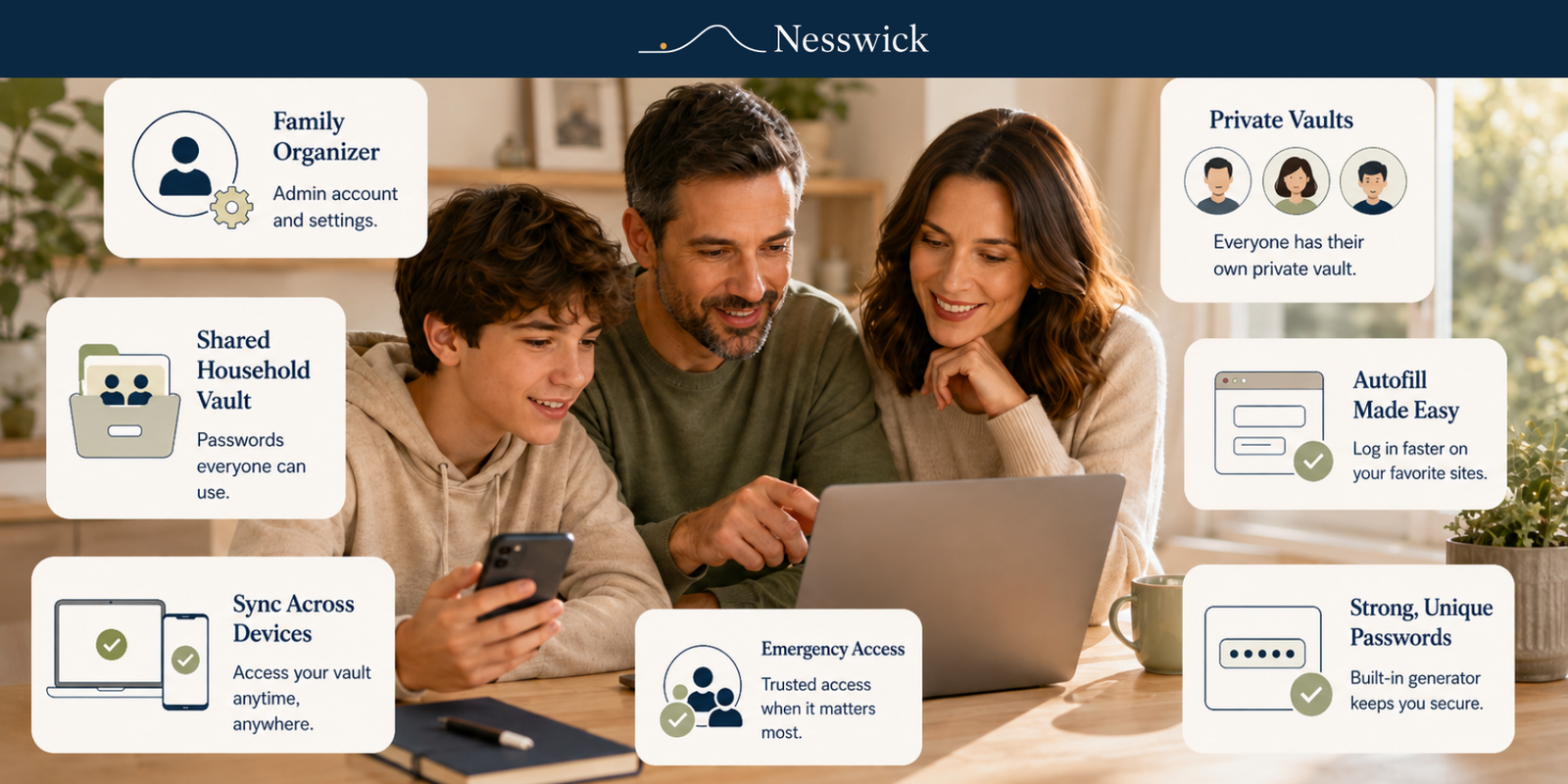
A family password manager is a household setup where each person has their own login and private vault, usually within a family plan, and only the logins the household genuinely shares sit in a shared vault. The structure is easy to picture.
- A shared vault holds the logins the household uses together: streaming services, the shared shopping account, the broadband and energy accounts.
- A private vault belongs to each person and holds their own accounts, such as personal email, banking and messaging.
- One master password per person unlocks their own vaults. Nobody else needs to know it.
- Apps and browser extensions on each device fill passwords in automatically, so nobody has to type or remember them.
Getting that structure right at the start is what makes household password security calm to live with afterwards, so it is worth a few minutes of thought before you begin.
Before You Start: A Ten-Minute Checklist
- Decide who is going to be the family organiser, meaning the person who sets things up and invites everyone else.
- Make a rough list of the accounts the household genuinely shares.
- Note which devices need covering: phones, tablets, laptops, and which browsers each person actually uses.
- Check that each family member has an email address to receive their invitation. Younger children may not, which is covered further down.
How to Set Up a Family Password Manager, Step by Step
Step 1: Choose Free or a Family Plan
Start with what a free plan can do, because for many households it is genuinely enough to begin with.
Some reputable free plans cover the fundamentals well, including unlimited passwords and devices, apps across major platforms, password generation and, depending on the provider, passkey support. Beyond that, what a free plan includes varies by provider, and extras such as weak or reused password reports are paid features with some managers. Sharing is where free plans differ most.
- Bitwarden’s free plan covers unlimited passwords and devices, and lets you share items with one other person by creating a free organisation. That is often enough for a couple.
- Proton Pass’s free plan covers unlimited logins and devices, but vault sharing is not included at the free tier.
- Apple’s Passwords app is free with an Apple account and, from iOS 18, iPadOS 18, macOS Sequoia and visionOS 2, includes shared groups for sharing passwords and passkeys with people you trust. It suits households that are entirely on Apple devices; Windows access is available through iCloud for Windows in Chrome or Edge.
A dedicated family plan is what you move to when you want several people sharing freely rather than one-to-one. Bitwarden’s Families plan covers up to six people with unlimited sharing and collections. 1Password Families includes up to five people, with room to grow, alongside unlimited shared vaults and admin controls. Proton Pass Family covers six accounts with an admin panel. Check current pricing before you commit, as plans change.
No order here is wrong. Starting with a free password manager for family use and moving up later is a perfectly sensible path, and nothing is lost by doing it that way. Our guide to the best free password manager and when to upgrade covers the trade-offs.
Step 2: Create the Organiser Account and Master Password
Sign up as the family organiser first. This account is the one that invites everyone else and manages the shared vault.
Your master password is the single password you will actually need to remember, so make it long and memorable rather than short and cryptic. A phrase of four or five unrelated words is easier to recall than a jumble of symbols, and length does more work than complexity. Write it down and keep it somewhere physically safe if that helps; a piece of paper in a drawer at home is a reasonable trade-off for most families.
Step 3: Turn On Two-Factor Authentication Straight Away
Turn on two-factor authentication before you put anything in the vault. Two-factor authentication means the manager asks for a second confirmation, usually a code from an app on your phone, when someone signs in on a new device. It adds a meaningful layer even if the master password is ever exposed.
Save the backup or recovery codes the manager offers you. Most people never need them, and the ones who do are glad they kept them.
Step 4: Invite Your Family Members
From the organiser account, send each person an invitation. Each one sets their own master password and gets their own private vault.
This matters more than it sounds. Everyone having their own login is what lets the household share the accounts it uses together while keeping personal accounts genuinely personal. It also means you can remove one person’s access later without disturbing anyone else.
Walk through the first sign-in with anyone who is less confident with technology. Ten minutes sitting next to someone saves a fortnight of them quietly not using it.
Step 5: Create the Shared Vault and Move the Right Things Into It
Create one shared vault for household logins and move those passwords across. A good rule is that anything more than one person needs to sign into belongs there.
Usually worth sharing
- Streaming and TV accounts
- Shared shopping accounts and grocery deliveries
- Broadband, energy and other utility accounts
- The home router login and the Wi-Fi password
- Family travel or loyalty accounts
Usually better kept private
- Personal email, which is often the reset route for everything else
- Online banking and payment apps
- Work accounts
- Personal messaging and social media
- Health-related accounts
- A credit card saved for one person’s own use
If you are unsure, leave it in the private vault. Moving something into the shared vault later is easy; unsharing something after everyone has seen it is not.
Step 6: Install the Apps and Browser Extensions
Install the manager on every device and browser the family actually uses, and sign each person in. Phones, tablets, laptops, and each browser on each computer.
The browser extension is the part that makes a password manager for families worth having, because it is what fills logins in automatically. A manager that is only installed on one laptop, and not as a desktop app or phone app as well, tends to get abandoned within a week.
While you are setting each device up, turn on biometric login where it is offered. Unlocking with a fingerprint or face rather than retyping a long master password every time is the single change that makes a household stick with it.
While you are there, turn off the browser’s own offer to save passwords on each device, so people are not left wondering which of the two is holding the real password.
Step 7: Import the Passwords Already Saved in Browsers
Nearly every manager has an import tool that pulls in passwords already saved in Chrome, Safari, Edge or Firefox. Run it for each person, on each browser they use.
Expect the result to be untidy, with duplicates and a few long-forgotten online accounts. That is normal and it does not need fixing now. Getting everything into one place first is more useful than getting it perfect.
Step 8: Replace Weak and Reused Passwords Gradually
Once the vault is populated, many managers can flag passwords that are weak, reused across sites or found in a known breach, though with some this is a paid feature.
There is no need to fix them all in one sitting. A realistic approach is to change the most important few first, then a handful a week:
- Email accounts first, because they can reset almost everything else.
- Banking and payment accounts next.
- Then anything holding an address, a card or personal records.
- Then everything else, whenever you happen to log in anyway.
Reducing password reuse is where most of the practical benefit comes from, and it works just as well spread over a month as crammed into one evening.
Step 9: Set Up Recovery Before You Need It
Recovery is the step people skip, and the one they most regret skipping.
Some family plans include account-recovery or emergency-access tools, though what is offered varies by provider. With 1Password Families, for example, family organisers can help recover other family members’ accounts. A family organiser cannot recover their own account, which is why having a second family organiser is a sensible safeguard. Some managers instead let each member generate a personal recovery code they keep themselves.
Whichever manager you use, do two things now: check what recovery it actually offers and set that up, and keep any recovery codes somewhere safe and offline. Our separate guide on sharing passwords safely with family covers emergency and legacy access in more detail.
Setting Up Children and Teens
Children do not need access to everything, and a family setup handles this well if you plan it.
- Younger children often do not need their own account at all. A parent can keep their logins in a private vault and sign them in when needed.
- Older children benefit from having their own login and private vault, which teaches the habit early and keeps their accounts genuinely their own.
- Shared access should be selective. Give children access to the shared vault only if the household accounts in it are ones they should be using. If not, create a second shared vault for the accounts adults share, and keep the general one for everyone.
- Be clear about the master password. The one rule worth repeating is that nobody types their strong master password anywhere except the manager itself.
Helping Less Confident Family Members Get Comfortable
The first week is where adoption is won or lost. A few things help.
- Show autofill working once, on a site they use daily. Seeing the login appear on its own is what makes a password manager feel user friendly rather than fiddly.
- Explain that they will still be asked for their master password occasionally, and that this is normal rather than a fault.
- Agree that new accounts get saved to the manager when the prompt appears, rather than dismissed.
- Expect a couple of sites to fill awkwardly. Copying and pasting from the vault is a perfectly acceptable fallback.
What Happens If the Family Organiser Loses Access
This is worth planning for now rather than later.
Every other member still has their own account and their own vault, so nothing disappears. What can be lost is the ability to manage the plan, invite people and help with recovery. That is why a second person set up as a family organiser, where the manager supports it, is a sensible arrangement in almost every household, and why any recovery codes are worth keeping somewhere physical and safe.
When a Paid Family Plan Is Worth Paying For
A free plan is a real improvement over reused passwords and browser notes, and there is no need to buy anything to start. A paid family plan tends to be worth it when one or more of these apply:
- More than two people need to share, and one-to-one sharing has become fiddly.
- You want several separate shared vaults rather than one.
- You want proper admin controls over who can see what, and easy removal when someone leaves the household.
- You want built-in account recovery so one locked-out person is not a crisis.
- You want onboarding to be simple enough that everyone actually uses it.
If none of those apply yet, staying free is a perfectly good decision. You can move up whenever the household outgrows it.
The Honest Limits
A password manager reduces certain account-security risks. It makes unique passwords practical, reduces password reuse, and supports secure sharing of household logins rather than sending them by message. That is a real improvement, and for many households it is one of the most useful password habits they can adopt.
This is not a guarantee. It cannot stop someone being persuaded to type their password into a convincing fake site, and it does not protect an account whose recovery email has been compromised. Good habits still matter alongside it: pausing before clicking links in unexpected messages, turning on two-factor authentication on important accounts, and keeping the master password to yourself.
Give it a week and it stops feeling like a project and starts feeling like something you would not want to be without.
Frequently Asked Questions
How long does it take to set up a family password manager?
The core setup is comfortably an evening: creating the accounts, inviting everyone, building the shared vault and installing the apps. Replacing weak or reused passwords happens gradually over the following days, a few at a time.
What is a shared vault?
It is a space within the manager for logins the household uses together, such as streaming or shared shopping accounts, kept separate from each person’s private passwords. Only the people you give access to can see what is in it.
Do all my family members need their own account?
Ideally, yes. Giving each person their own login and private vault keeps personal accounts private while still allowing a shared vault for household logins. It also makes it straightforward to remove someone’s access later.
Can I set up a family password manager for free?
In large part, yes. Some free plans cover unlimited passwords and devices, while features vary by provider. Sharing is where they differ most: Bitwarden’s free plan allows sharing with one other person, Proton Pass does not include vault sharing on free, and Apple’s Passwords app offers shared groups at no cost for households on Apple devices. Paid family plans mainly add multi-person sharing, admin controls and recovery.
What should not go in the family shared vault?
Personal email, online banking, work accounts and personal messaging are usually better kept in each person’s private vault. Shared vaults suit accounts the household genuinely uses together.
How do I add a child to a family password manager?
Older children can be invited as members with their own login and private vault. Younger children often do not need an account of their own; a parent can hold their logins privately and sign them in as needed. Give children access only to the shared vaults that contain accounts they should be using.
What if I forget my master password?
That depends on the manager. Some family plans offer recovery tools: with 1Password Families, a family organiser can help another member back in, though organisers cannot recover their own accounts, so it is worth having two. Other managers instead provide a personal recovery code you keep yourself. Where neither exists, the manager cannot recover the vault for you, which is the trade-off that comes with them not being able to read it.
Should we use passkeys instead?
Passkeys are increasingly supported and reputable managers now store and fill them alongside passwords, including on free plans. In practice most households will have a mixture for some years yet, so a manager that handles both is the sensible choice.



Related Resources


Affiliate Disclosure
Some password managers mentioned here are products we may earn a commission from if you sign up through our links. It never changes our guidance, which works just as well with a reputable free manager.
Sources and Methodology
This guide draws on the official setup and support documentation of the password managers named, including Bitwarden, 1Password, Proton Pass and Apple, and on widely accepted best practice for household password management. Features and plan limits are described as published by each provider at the time of writing and can change; check current details before committing. Steps are described in general terms and reflect current official information rather than hands-on testing.