
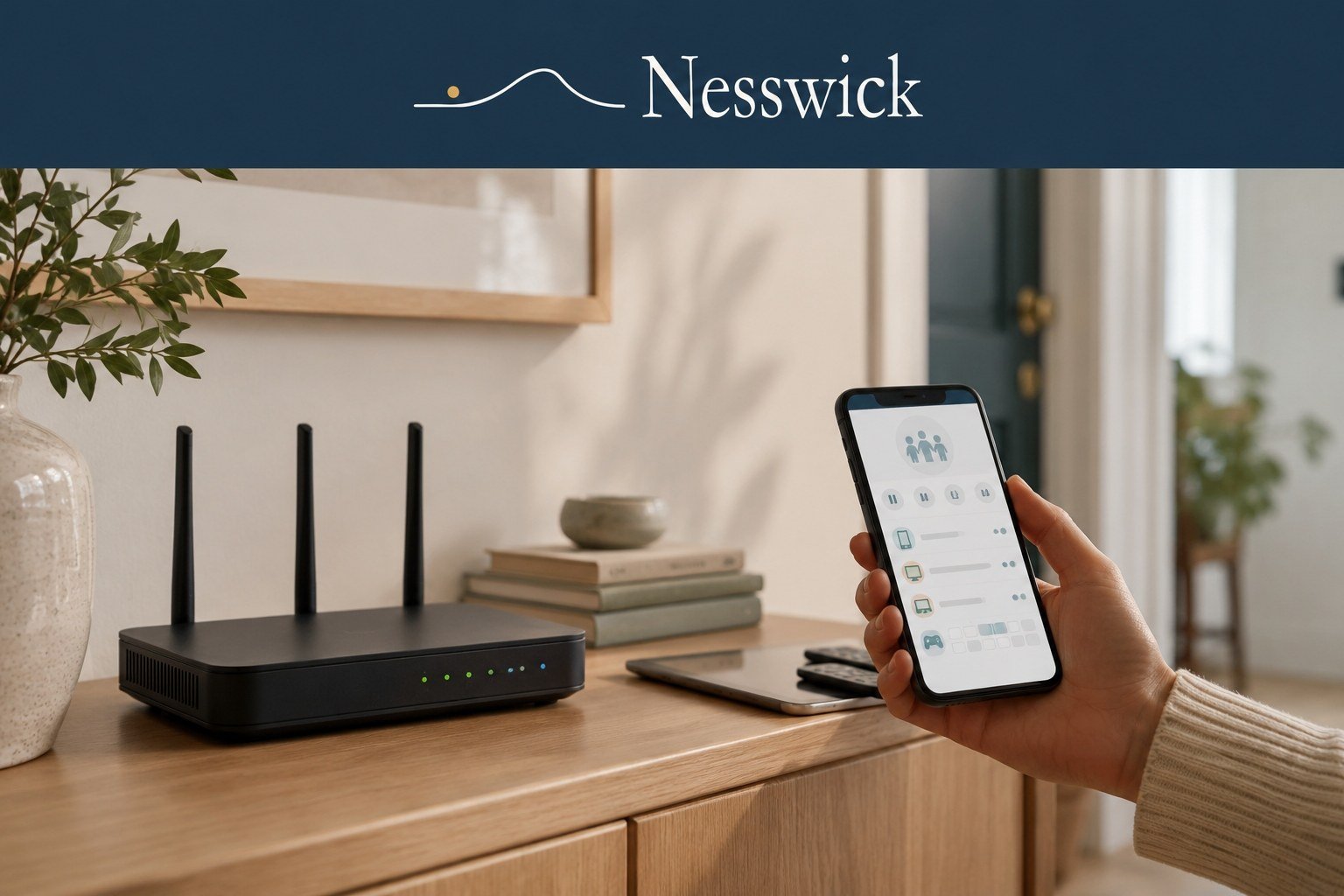
How to Set Up Parental Controls on a Home Wi-Fi Router
Setting limits device by device works fine until you count the devices: two phones, a tablet, the school laptop, a games console, a smart TV. Some have no parental controls at all, and the smart TV certainly doesn’t care what time it is. Your router is one central place they all pass through, which makes it a practical spot to set a rule once and have it apply across the network. This guide covers how to do that, and it sits alongside the rest of our Parental Controls coverage. It is also honest about where router controls stop: they are a useful whole-home layer, but broader and less precise than the controls on an individual phone, and they stop working the moment a device leaves your Wi-Fi.
Short Answer
Find your exact router model, update its firmware and app, then open the manufacturer’s official app or admin page. Change the admin password, create a profile for each child, assign their devices carefully, and set whichever schedule and filtering options your model and tier include. Test it on a real child device, and expect mobile data to bypass all of it.
What Router-Level Parental Controls Can Do
Because the router is the enforcement point, its rules apply to whatever is connected — it does not much matter whether a device runs iOS, Android, Windows, or some television operating system nobody has heard of. Four kinds of control are commonly offered: pausing, schedules and bedtimes, content filtering, and network-wide SafeSearch. What each costs varies more than most guides admit, so here is what five brands publish.
| Brand | Included at no cost | Behind a paid tier |
|---|---|---|
| Google Family Wi-Fi | Pausing devices or groups, including by voice; scheduled pauses; group site blocking using SafeSearch technology (Nest Wifi Pro, Nest Wifi, Google Wifi) | Not described as paid |
| NETGEAR Smart Parental Controls | Pausing across devices using profiles; assigning devices to profiles | Daily bedtimes, time limits, off time, rewards, content filtering, website history, LTE tracking |
| TP-Link HomeShield | Profiles, age template, pause, URL content filter, block specific websites, Bed Time, Insight | Flexible Bed Time, Time Limits, Off Time, Time Reward, SafeSearch, YouTube Restricted, app controls |
| eero | Profiles grouping devices by person; scheduling when they connect; restricting access outside a schedule | Content, app and website filtering per profile; Unassigned Device Control for guest and unrecognized devices |
| ASUS AiProtection | Described as free with no subscription fee: age-based Kid-Safe Preset, time scheduling, activity dashboard, content filter | Not described as paid |
Two patterns stand out. Pausing is the most consistently available feature and most often free — Linksys also offers it on individual devices at no cost (Linksys, Free Parental Controls). Bedtimes and content filtering are where brands diverge most: free on TP-Link and ASUS, paid on NETGEAR, split on eero. The trade-off throughout is precision, because a router works from devices and destinations rather than from what a child is doing inside an app.
Setting Up Parental Controls Step by Step
Every interface is different, so this is the general path rather than a script for one manufacturer. The order matters more than the exact menu names.
- Identify the exact model — not the brand on the box — and search your manufacturer’s support site for that model plus “parental controls”. NETGEAR states only listed products support Smart Parental Controls, that earlier or later versions may not, and that the service works only where available (NETGEAR, supported products). Linksys notes settings vary by model (Linksys, Parental Controls overview), and a provider’s combined modem-router may have controls that are cut down or absent.
- Update the firmware and the app. These features move between firmware versions, and an out-of-date app often hides settings the router already has. ASUS documents automatic, web-interface, and manual updates, and warns against cutting the power partway through (ASUS, updating router firmware).
- Open the official app or admin interface — Google Home, eero, ASUS Router, TP-Link Tether, or your model’s web page — not a third-party app promising to manage your router. On some brands the useful settings appear only once a subscription or trial is active. ASUS also notes AiProtection does not operate in access point, repeater, or media bridge mode.
- Change the admin password if it is weak or default. The Federal Trade Commission is clear that a router has two separate passwords — the Wi-Fi password and the admin password — and anyone reaching the admin side can undo your other security steps. It also recommends turning off remote management, WPS, and UPnP (FTC, How To Secure Your Home Wi-Fi Network). ASUS suggests more than ten characters mixing cases, digits, and symbols (ASUS, changing router login details). Store it in a free password manager.
- Identify the household devices — the hardest part, which is why it has its own section below.
- Create a profile for each child where supported, then assign the correct devices to it. A misassigned device means either a rule that does nothing or one that pauses the wrong person’s homework.
- Configure the schedules and filters your tier includes, using what is free before considering a subscription.
- Enable SafeSearch only where officially supported. Do not improvise DNS changes.
- Test on an actual child device before you rely on any of it.
- Recheck after changes. New firmware, a new phone, a replaced router, or a factory reset can all quietly undo your work.
Identifying and Assigning the Right Devices
This is where most parents get stuck. Routers identify devices by MAC address, a hardware identifier each network adapter presents to the network. Google’s troubleshooting page acknowledges devices often appear under machine-generated names, and recommends comparing the MAC address in the device’s network settings against what the Google Home app shows (Google, identifying devices in Family Wi-Fi).
The complication is that phones may present a private address instead of the hardware one. That is a genuine privacy feature and it can interfere with recognition on some router-control systems. What it does not do, contrary to a lot of advice online, is continually change the address on every home network.
What your phone is actually doing
On Apple devices running iOS 18, iPadOS 18, macOS Sequoia 15, watchOS 11, visionOS 2, or later, the Private Wi-Fi Address setting has three states: Off uses the hardware MAC address; Fixed uses a private address that does not rotate; Rotating changes it every two weeks. Apple states the device chooses Fixed by default on a network using WPA2 or stronger security, and Rotating where security is weak or absent (Apple, private Wi-Fi addresses). So on a properly secured home network, a current Apple device is most likely already presenting a stable address.
Android’s default is persistent randomization: the address is derived from the network profile and stays the same for that network until a factory reset. On some networks running Android 12 or higher it can be re-randomized under specific conditions. Android’s documentation notes persistent addresses let a network remember a device, giving “enable parental controls” as an example, and randomization can be turned off per network on Android 10 and higher (Android Open Source Project, MAC randomization behavior).
When it is worth changing, and when it is not
Vendors do document real problems. eero lists device identification, pausing and blocking devices, and profile assignment and schedules among features that may be affected when randomization is enabled, and says an unrecognized device appears as an “Unknown” type (eero, MAC address randomization). Linksys states that if a device randomly changes its MAC address you must change that option on the device first, or Parental Controls will not work properly (Linksys, Parental Controls overview).
A sensible order:
- Work out whether the address is off, fixed, or rotating, and whether it is actually causing your problem. A device your router already recognizes needs nothing changed.
- If it is rotating and your router keeps losing the device, switching that device to a fixed private address for your home network is often enough, and keeps most of the privacy benefit.
- Turn the private address off entirely only when your vendor requires it, or testing shows the profile cannot recognize the device any other way.
The trade-off is real: presenting the hardware MAC makes a device easier to identify and track on any network it joins. So keep every change specific to your trusted home network. Both Apple and Android expose this setting per network, and disabling private addressing globally would remove the privacy benefit at school, at work, and on public Wi-Fi.
Profiles, Schedules, Pauses, and Filters
Once devices are correctly assigned, the rules are the easy part. Set a bedtime or scheduled pause on the profile rather than a single device, so the tablet cannot become a loophole. Age-based filter templates are a reasonable starting point, but expect to adjust them — default lists are broad and will block something your child needs for school.
Free website blocking can also be narrower than it sounds. One Linksys page documents that blocking specific sites works for HTTP rather than HTTPS and that IPv6 will not be blocked, while another describes HTTPS addresses being blocked but producing a browser error rather than a block page (Linksys, Free Parental Controls; Linksys, Parental Controls overview) — the result depends on your model and firmware, so test it.
Whole-Home SafeSearch
Google documents a network-level method: if you manage a network, you can force SafeSearch on it by updating your DNS configuration so the Google domains you include point at the SafeSearch address. Google states this cannot be undone at the browser level, still allows a secure HTTPS connection, and covers Google Search, image search, and video search (Google, Lock SafeSearch for devices you manage).
Three caveats. Your router or local DNS system has to support that configuration, and many consumer routers cannot create the necessary entry. It covers only the Google domains you configure, so other search engines and apps need separate controls. And “cannot be undone at the browser level” is not the same as cannot be bypassed — a VPN, device-level encrypted DNS, mobile data, or a different network all take a device outside your configuration. Because a DNS mistake can break name resolution for the whole house, follow Google’s own documentation rather than a shortcut.
How to Test Whether the Controls Work
A configured control and a working control are different things, so test with a device your child actually uses. Pause it and watch it lose access; if it stays online, it is either not the device you think it is, or it has fallen out of the profile. Then try to reach something you have blocked, and note whether the block applies in the browser only. Linksys is direct that basic parental controls do not block mobile apps, only web URLs — so blocking the Facebook URL stops it in the browser while the app still works (Linksys, Free Parental Controls).
Finally, set a schedule a few minutes ahead and confirm it triggers; silent failures usually trace back to a wrong router time zone or a device that drifted out of its profile.
Common Problems and Troubleshooting
A device is missing from the list. It may already be in another profile, or presenting a private address the router does not recognize.
The same phone appears several times. A rotating or re-randomized address is a common cause. Check what the device is set to before changing anything, then clear the stale entries.
A blocked site loads anyway. Depending on your model, blocking may not cover HTTPS, IPv6, or the app version of a service.
The feature you read about isn’t in your app. Check whether it is subscription-gated on your brand, whether your model and region support it, and whether app and firmware are current. Firmware updates, factory resets, and replaced hardware can also quietly move or reset settings that were working.
What Router Controls Cannot Do
Used well, router controls close a real gap. They are not a guarantee, and it is better to know the limits than to discover them.
Mobile data walks straight around them. Linksys states it plainly: parental controls apply only to devices connected to your home Wi-Fi and cannot manage access if a device is on a mobile data plan, so pauses will not apply and blocked websites will get through (Linksys, Free Parental Controls).
A VPN or encrypted DNS can weaken filtering — which is not the same as defeating every control. Filtering that matches domain names can be bypassed if a device stops using your network’s DNS or tunnels its traffic elsewhere. A router-level pause or block that denies network access to the device itself is a different mechanism: if the router refuses to carry the traffic, a VPN app on that device has nothing to tunnel through. Mozilla has partly addressed the DNS side, saying Firefox checks canary domains and disables DNS-over-HTTPS if they indicate parental controls are on — though those checks are ignored if the user explicitly enabled it themselves (Mozilla, DNS over HTTPS FAQs).
Guest networks are a question mark. Whether your controls extend to guest-network devices is not settled by most vendors’ documentation. eero is one of the few to address it, describing Unassigned Device Control as the way its filters reach guest and unrecognized devices — inside eero Plus.
Router Controls Versus Device-Level Controls
These are complements, not competitors. Router controls are network-wide and device-agnostic: they reach the console and the smart TV, they are coarser, and they only work on your Wi-Fi. Device controls are precise and travel with the device — Apple’s Screen Time works at device and account level through Family Sharing with no network component (Apple, parental controls for iPhone and iPad), and Family Link does the same on Android, which our guide to parental controls on Android covers in full. Microsoft Family Safety sits in between: it follows the child’s Microsoft account across devices, but Microsoft states its web and search filters work only with Microsoft Edge (Microsoft, filtering websites and searches).
When a Paid Option Might Help
Free first: configure what your router already includes, and the device-level controls, before spending anything. A paid tier makes sense when your hardware’s free tier genuinely lacks what you need — the table above is where to start — or when you want per-child reporting and history in one dashboard. And no subscription guarantees a child’s safety online.
A Short Family Setup Checklist
- Check your exact model’s official page for what your model and region support, then update firmware and app
- Change the admin password, separate from the Wi-Fi password, and turn off remote management, WPS, and UPnP
- Check what each child’s device is set to for private or randomized Wi-Fi addresses, and confirm that is actually causing the recognition problem before changing anything
- If a change is needed, prefer a fixed private address for your home network; turn private addressing off only if the router requires it, and only for that network
- Create one profile per child, assign their devices, and rename each one recognizably
- Set the schedules and filters your tier includes, then fix the false positives
- Test a pause, a blocked site, and a schedule on a real child device
- Add device-level controls on each phone, and recheck after firmware updates or new devices
Bottom Line
Router-level controls are an efficient way to cover a whole house from one place, and for the smart TV and the games console they may be the only controls available. Set up whatever your model includes properly: correct devices, one profile per child, a schedule, and a real test. Then add device-level controls on each phone, because the router’s rules end at your front door and mobile data slips past them.
Frequently Asked Questions
Do all routers have parental controls?
No. Pause and profile features are common on current retail router and mesh lines, but availability depends on the model, firmware version, region, and subscription tier. NETGEAR restricts Smart Parental Controls to listed products and to countries where the service is available, and TP-Link and Linksys both warn features vary by model and software version. Provider-supplied routers vary the most.
Are router parental controls free?
It depends on the brand and often the individual feature. Pausing is commonly free. Beyond that, NETGEAR places bedtimes, time limits, and content filtering in Premium; eero includes profiles and scheduling but puts filtering in eero Plus; TP-Link includes bedtime and URL filtering in its free tier; ASUS describes its parental controls as free.
Can my child get around router parental controls?
Yes, most easily by switching to mobile data, which takes the device off your network entirely — Linksys documents this directly. A VPN or encrypted DNS can also weaken domain-based filtering, though a pause that cuts the device off the network is harder to tunnel around.
Should I turn off private or randomized Wi-Fi addresses on my child’s phone?
Not automatically. Current Apple systems default to a fixed private address on networks using WPA2 or stronger, and Android’s default is a persistent address that stays the same for a given network — so often nothing needs changing. If your router genuinely cannot track the device, prefer a fixed private address, and turn private addressing off only if the vendor requires it, for your home network only.

Affiliate Disclosure
This guide does not currently link to any paid product. Where Nesswick does recommend a paid service, we say so and may earn a commission — it never changes what we recommend, and our starting position is always the free controls already built into your router and your family’s devices.
Sources and Methodology
This guide is based on current official documentation from router manufacturers and platform providers, plus vendor-neutral guidance from the US Federal Trade Commission. It does not rely on third-party reviews. Statements about features, tiers, and limitations come from each manufacturer’s own documentation and are attributed in the text. The step order, the free-first position, and the judgment about when a private Wi-Fi address is worth changing are Nesswick’s editorial interpretation.
Some things only your own hardware can answer, and they are flagged where they arise: whether your model and region support a feature, whether blocking covers HTTPS, IPv6, and apps on your firmware, whether controls reach guest-network devices, and whether your router supports custom DNS records. Because interfaces differ between manufacturers, models, and firmware versions, the steps are a general path rather than a click-by-click walkthrough. Availability, tier names, and subscription structures reflect what vendors published at the time of writing and can change. Prices are not quoted, since they vary by region. Nesswick did not perform hands-on testing of router hardware for this article.
Sources Referenced
- Google — About Family Wi-Fi
- Google — Can’t find or identify a device in Family Wi-Fi
- Google — Lock SafeSearch for devices you manage
- eero — What are Profiles?
- eero — What is MAC Address Randomization?
- TP-Link — HomeShield parental control features
- ASUS — AiProtection and router security
- ASUS — How to change your router login name and password
- ASUS — How to update your router firmware
- Linksys — Free Parental Controls
- Linksys — Overview of the Parental Controls feature on Linksys Smart Wi-Fi routers
- NETGEAR — Smart Parental Controls free and Premium feature comparison
- NETGEAR — Which products support Smart Parental Controls
- Android Open Source Project — MAC randomization behavior
- Apple — Use private Wi-Fi addresses on Apple devices
- Apple — Use parental controls to manage your child’s iPhone or iPad
- Microsoft — Filter websites and searches using Microsoft Family Safety
- Mozilla — DNS over HTTPS (DoH) FAQs
- Federal Trade Commission — How To Secure Your Home Wi-Fi Network