
How to Set Up Parental Controls on an iPhone
When a child gets an iPhone, most parents want the same thing: sensible limits and a bit of peace of mind, without having to buy and learn a separate app. The reassuring news is that the tools to do a great deal of this are already built into the phone, at no cost. They are just spread across a few settings that are easier to work through with a guide.
This walkthrough sets up Apple’s free parental controls step by step, and stays honest about what they cover well and where they quietly stop.
What This Is and Why It Matters
Apple’s built-in controls come in two connected parts. Family Sharing links your child’s account to yours so you can manage it, and Screen Time provides the actual limits and filters: content restrictions, app and communication limits, and downtime. Together they let you shape how the phone is used.
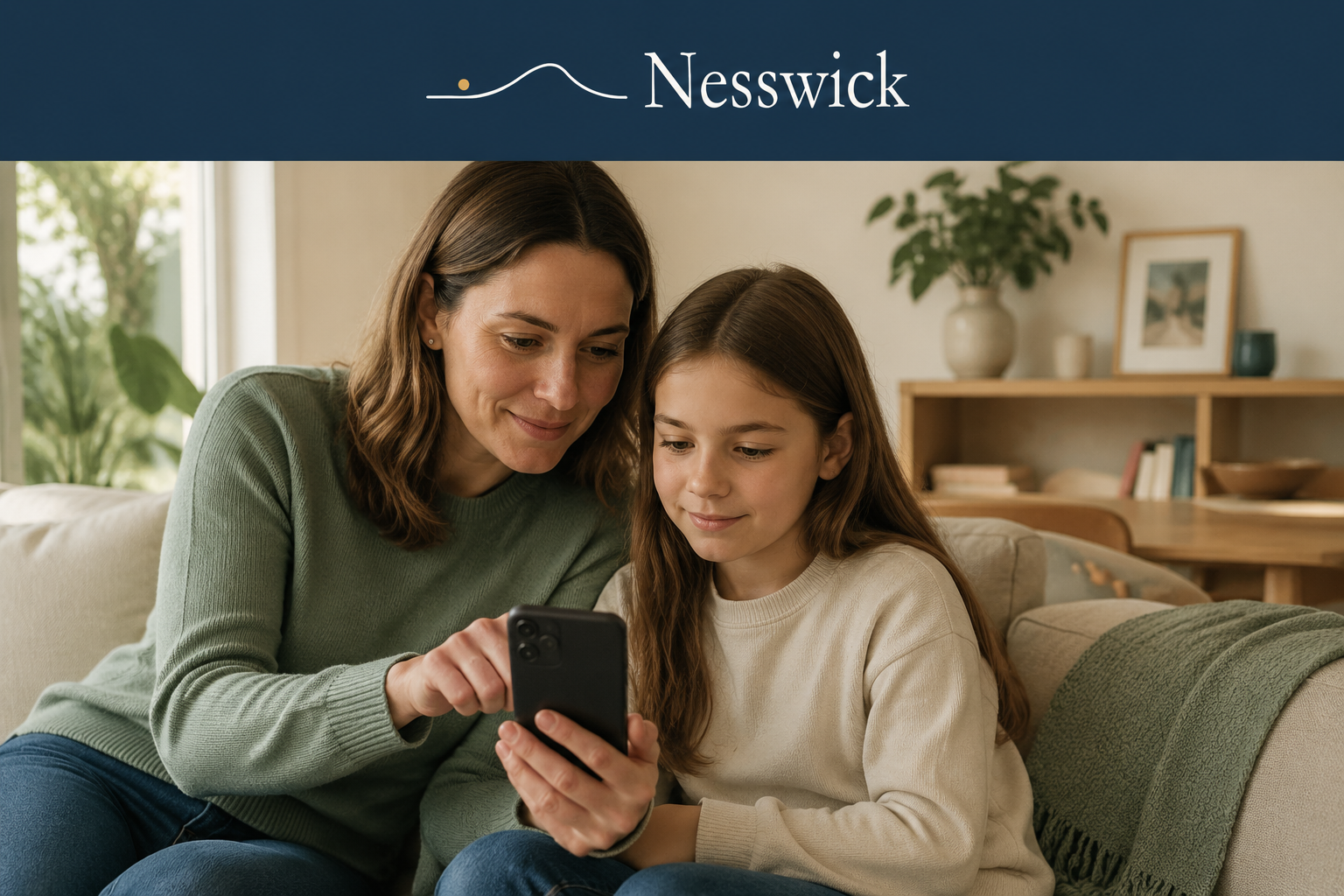
It helps to think of these as supervision and support rather than surveillance. The goal is a phone that fits your child’s age, set up openly and, ideally, with your child in the room.
How to Set Up Parental Controls on an iPhone, Step by Step
Start by setting up your child’s Apple Account and adding it to Family Sharing, which places their device under your family group and lets you manage it as a parent. If your child already has an account, you can bring it into the family group.
Next, turn on Screen Time for the child’s device. Within it, open Content and Privacy Restrictions and set age-appropriate limits for websites, media, apps, and purchases. Set communication limits to control who your child can contact, and use App Limits to cap time on particular categories or apps. Set a Downtime schedule for evenings and school nights when only the essentials are available.
Crucially, set a separate Screen Time passcode that your child does not know, so the limits cannot simply be switched off, and keep it different from the phone’s unlock code. Finally, sit down and review the settings together, so your child understands what is in place and why; that conversation does more for their safety than any single toggle.
What to Expect, and the Honest Limits
Apple’s controls are strong for setting limits and filtering content, but they are not a guarantee of a child’s safety. No settings can promise that, and a determined teenager may find gaps, which is exactly why the ongoing conversation matters as much as the configuration. Native controls also focus on limits and filtering rather than the deeper monitoring some parents want, and they only cover Apple devices.
Used as one layer, supported by trust and regular check-ins, they are an excellent and free foundation. Treated as a set-and-forget guarantee, they will disappoint, as any tool would.
When a Paid Option Is Worth It
A paid parental-control app can be worth considering if your household mixes iPhones with Android devices and you want one dashboard for everything, or if you want monitoring and reporting beyond what the native tools offer. For many families, though, Apple’s free controls plus open conversations are enough, so it is sensible to start here before paying for anything.
Frequently Asked Questions
Do I need to buy an app for parental controls on an iPhone?
No. Apple’s built-in Family Sharing and Screen Time cover a great deal at no cost. A paid app is only worth considering for cross-platform households or deeper monitoring.
Can my child just turn the controls off?
Not if you set a separate Screen Time passcode that they do not know, kept different from the phone’s unlock code. That is what stops the limits being switched off.
Will parental controls keep my child completely safe online?
No tool can promise that. They are a strong layer for limits and filtering, and they work best alongside regular conversations about what your child sees and does online.
Do these controls work on Android devices too?
No, Apple’s controls only cover Apple devices. For Android, there are separate built-in tools, and a cross-platform paid app can cover both if your household mixes devices.
Related Articles

Affiliate Disclosure
If we mention a paid parental-control app, it may be a product we earn a commission from should you choose it through our links. It never changes this guide, which is built entirely around Apple’s free, native controls first.
Sources and Methodology
This tutorial draws on Apple’s official support documentation for Family Sharing and Screen Time, and on the official pages of any paid app named. Steps are described in general terms and reflect current official information rather than hands-on testing.