
How to Make Family Photos Back Themselves Up
This guide uses current Apple, Google, Microsoft and CISA documentation. Nesswick has not tested any photo service and recommends none here. Re-verified 29 September 2026.
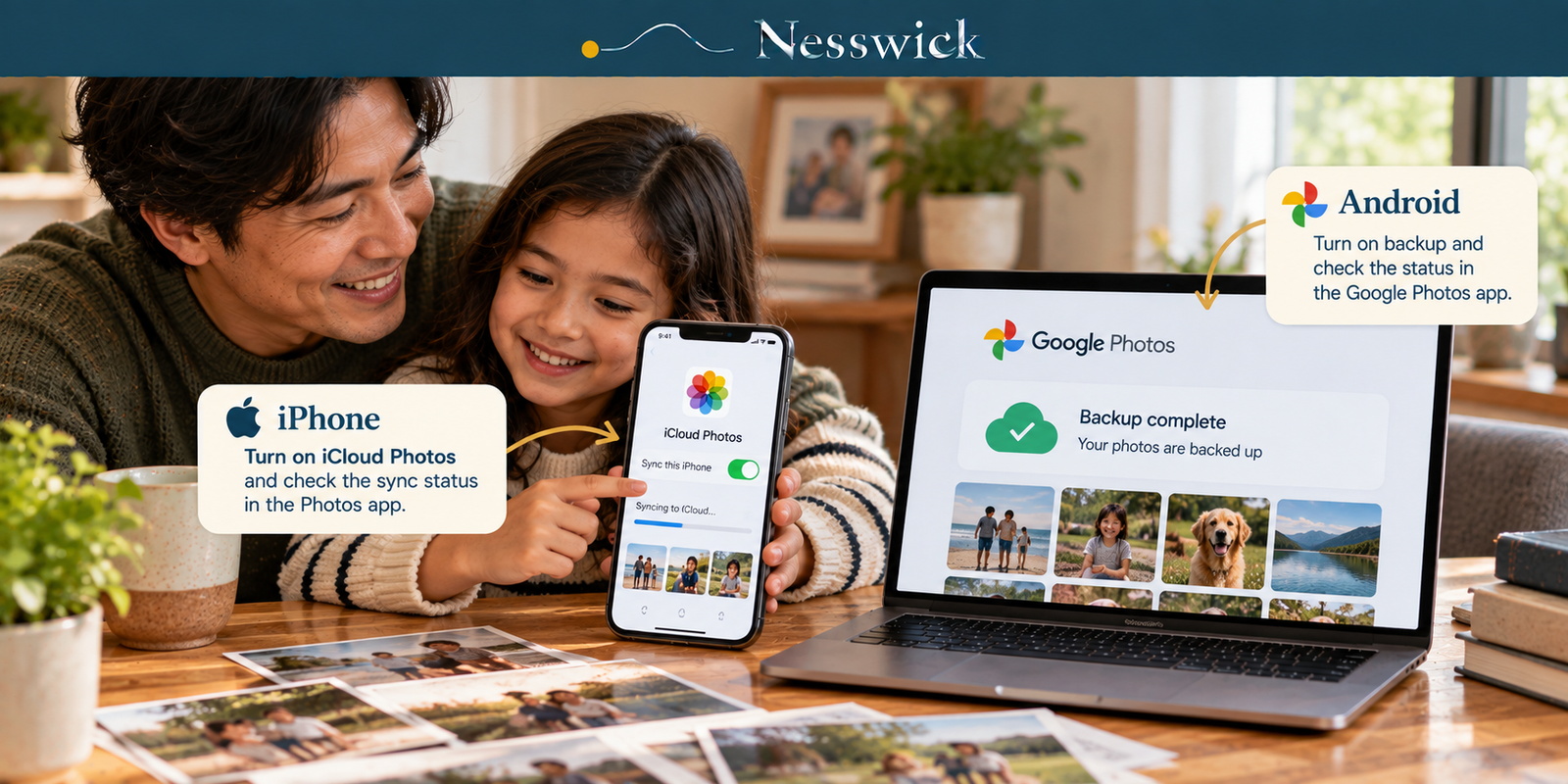
There is an easy way to misunderstand photo protection on an iPhone. If iCloud Photos is turned on, the photo library syncs separately through iCloud Photos; it is not something you verify by looking at the phone’s iCloud Backup timestamp. Apple now gives the photo library its own sync-status view inside the Photos app.
That distinction matters because automatic uploading can fail quietly. The useful habit is not just turning a switch on. It is knowing where the service shows whether the most recent photos have actually reached the cloud.
Turn on the upload, and know which switch you turned on
On an iPhone. Go to Settings, tap your name, tap iCloud, tap Photos, then turn on Sync this iPhone. Apple says iCloud automatically uploads the photos and videos you take so the library stays in sync across devices using the same Apple Account.
iCloud Backup is separate. It can protect other eligible data on the iPhone, but when iCloud Photos is in use, do not use the iCloud Backup timestamp as proof that the photo library itself is current.
On an Android phone. Open Google Photos, sign in, tap your profile picture or initial, open Photos settings, then Backup, and turn Backup on. On Android, Google also lets you choose which device folders are backed up, so check those if important family pictures arrive through apps or folders outside the camera folder.
If a household uses both iPhone and Android devices, decide deliberately where the shared photo library should live. You can use Apple, Google or another service, but avoid assuming that two partially configured systems automatically create two independent backups.
Now prove the photos are actually syncing
On iPhone with iCloud Photos. Open Photos, go to Collections, and check the syncing status shown near the top-right/profile area. Apple currently uses status indicators for conditions such as paused syncing, storage nearly full and storage full. If syncing is paused, tap the account/profile control to see the reason. This Photos-library status is the relevant check for iCloud Photos.
On Google Photos. Check the backup status in the app. Google currently uses states including Backup complete, Backup is off, Backing up, Preparing backup and Backup paused. If items remain, the app can show that work is still in progress.
For an individual item in Google Photos, open the photo or video, tap More, then About, and look under Details. Google shows whether that item is backed up. Checking a recent picture is more useful than checking one from years ago.
Do this after setup and again periodically. The point is to verify a recent photo, not merely confirm that a setting was once enabled.
What can stop automatic uploading
Storage is one common cause, but not the only one. Apple says iCloud Photos syncing can pause for reasons including full or nearly full iCloud storage, Low Power Mode, Low Data Mode and other device conditions. Apple recommends checking the Photos library status and following the message shown there.
Google Photos likewise exposes backup status and troubleshooting information. On Android, Google specifically notes that battery optimization can interfere with backup, and the app also depends on the selected backup settings, account and available storage.
The practical rule is simple: do not diagnose from memory. Read the current status shown by the photo service, then fix the condition it reports.
Deleting from the phone is not the same as deleting from the library
This is where a second copy matters. In Google Photos, using a supported device-removal or Free up space action can remove local device copies while leaving backed-up items in Google Photos. By contrast, deleting a backed-up item from the Google Photos library can remove it from the Google Account and from devices with backup turned on. Google documents these as different actions.
The same general caution applies to synchronized libraries: synchronization is designed to keep a library consistent, so a cloud-synced photo library should not be treated as an independent historical archive of every prior state. Before a large cleanup, confirm that the recent photos are uploaded and make sure genuinely irreplaceable pictures exist in another independent copy.
The copy that is not in the account
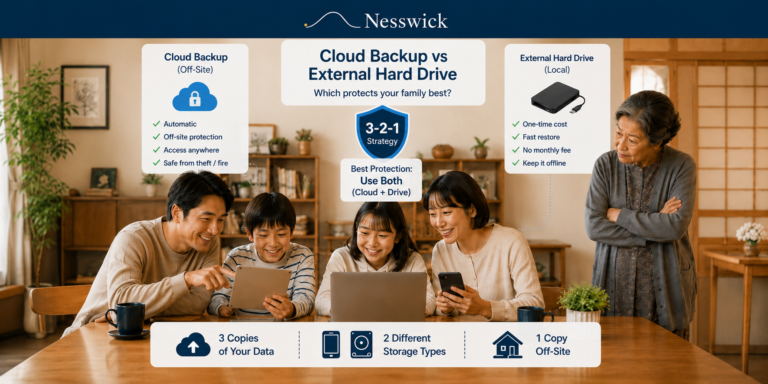
Automatic cloud upload solves the remembering problem, but a synchronized cloud library should not be the household’s only copy. CISA guidance describes the 3-2-1 approach as three copies, on two different media types, with one copy off-site. For family photos, a practical version is the working library, a separate backup copy, and another copy that is not exposed to the same device or account failure.
On a Mac, Time Machine can provide a separate versioned backup when it is configured to a backup disk. On Windows, Microsoft’s Windows Backup uses OneDrive for selected folders: Microsoft says backing up those folders syncs them to the OneDrive account. A free Microsoft account currently includes 5 GB of OneDrive storage. That can be useful, but OneDrive folder sync should not be counted as an independent offline copy of a cloud-synced photo library.
For many families, periodically copying the photo library to an external drive is the simplest additional layer. Keep that drive disconnected when it is not being used, and ideally keep another important copy away from the main device or home.
What automatic does and does not mean
Automatic means new photos can leave the phone without someone remembering to transfer them. It does not mean every photo is definitely uploaded, which is why status checking matters. It does not mean protection from every deletion or account problem. And it does not replace a second independent backup.
A five-minute family-photo check
- Open the photo service and read its current sync or backup status.
- Check a photo from the last few days and confirm that it is present in the cloud service.
- Check remaining cloud-account storage and any warning shown by the service.
- On Android, confirm the device folders you actually care about are included in Google Photos backup.
- Periodically update a separate backup copy, such as an external drive, and keep it separate from the everyday synced library.


Affiliate Disclosure
Current relationship: Nesswick does not currently use affiliate links in this article. Product and service references are included for editorial purposes.
Sources and Methodology
This is an official-documentation guide. Nesswick did not test iCloud Photos, Google Photos, OneDrive, Windows Backup or Time Machine for this article and does not recommend a particular photo-storage provider here. Procedures and factual claims were re-checked on 29 September 2026 against current Apple, Google, Microsoft and CISA documentation.
The recovered master was substantively corrected where current documentation did not support its verification method. In particular, the old article told iPhone readers to use the iCloud Backup timestamp as the equivalent of Google Photos’ photo-backup status. The revised article instead uses Apple’s current iCloud Photos library sync status in the Photos app, because that is the status Apple documents for confirming that photos and videos are syncing to iCloud.
Menu paths and interface labels can change. Readers should follow the current status and instructions shown on their own device. General information for US readers. Automatic uploading is not the same as protection from deletion, and no synchronized cloud photo library should be treated as the household’s only copy.
Editorial verification / review date: 29 September 2026.
Sources Referenced
- Apple – Back up and sync your photos and videos with iCloud – support.apple.com
- Apple – If your iCloud Photos aren’t syncing or syncing with iCloud is paused – support.apple.com
- Google Photos Help – Back up photos & videos – support.google.com/photos
- Google Photos Help – Troubleshoot photos not backing up – support.google.com/photos
- Google Photos Help – Delete photos & videos / Free up space – support.google.com/photos
- Microsoft Support – Back up and restore with Windows Backup – support.microsoft.com
- Microsoft Support – Back up your folders with OneDrive – support.microsoft.com
- CISA – backup guidance describing the 3-2-1 rule – cisa.gov