
Cloud Backup vs External Hard Drive: Which Do You Need?
“Should I back up to the cloud, or just buy an external drive?” sounds like a choice between two rivals. In practice the two cover different failures, and the households with the least to worry about are usually the ones running both.
This is a method guide, not a product face-off. No brand wins here, and Nesswick did not test any hardware or service for this article. Below is what each approach does, where each leaves a gap, and what is worth setting up first.
Short Answer
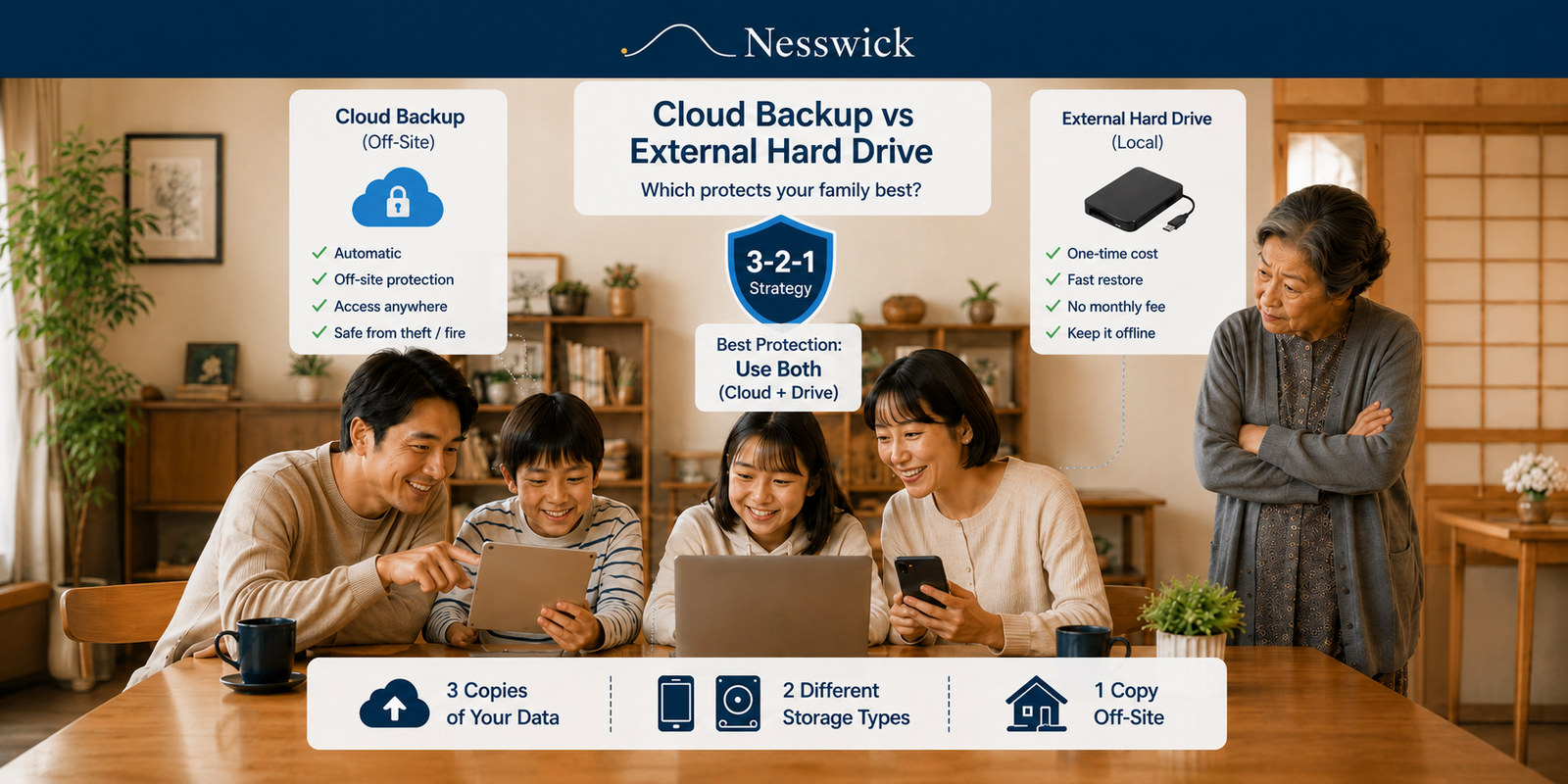
An external hard drive gives you a fast, one-time-cost copy you own, and it is the quickest way to get files back. Its weakness is that it usually sits in the same room as the computer, so a fire, flood, or burglary can take both at once. Cloud backup gives you an automatic off-site copy that survives those events, at a recurring cost, with a first upload that can take a while and restores that depend on your internet connection. Neither is complete on its own. If you already own an external drive, it is usually the cheapest place to start — then add an off-site copy when you can.
Cloud Backup, Cloud Storage, and an External Drive Are Three Different Things
This is where most confusion starts, and it is worth two minutes before anything else.
An external hard drive is a physical disk you plug in. Paired with your computer’s built-in backup software, it holds a separate copy of your files, including older versions of them.
Cloud backup is a service that copies your files to a provider’s servers over the internet, usually on a schedule you set once and then forget. It is built around getting data back after something goes wrong.
Cloud storage and sync — Google Drive, iCloud Drive, Dropbox, OneDrive — is built around having your files available everywhere and sharing them. That is genuinely useful, but sync works in both directions. If a file is deleted or overwritten on your laptop, the sync service is designed to make that change everywhere. Most of these services keep deleted files and older versions for a limited window, which helps, but a folder that mirrors your computer is not the same as a backup that keeps a separate, versioned copy.
There is a wrinkle here worth knowing. On Windows 11, the app called Windows Backup saves your folders and settings to OneDrive, and Microsoft’s documentation describes it as syncing the folders you specify to your OneDrive account. The separate File History feature is the one that backs up to an external drive or network location and keeps previous versions of files. Two features, two very different jobs, similar-sounding names.
If your interest is really in where to keep and share files rather than how to recover them, our guide to cloud storage for family photos covers that side of the question.
Cloud Backup vs External Hard Drive: The Comparison
| External hard drive | Cloud backup | |
|---|---|---|
| Up-front cost | One-off hardware purchase | Usually none |
| Ongoing cost | None after purchase | Recurring subscription |
| Automation | Depends on the tool and on the drive being connected | Runs on its own once configured |
| Off-site copy | No, unless you deliberately store it elsewhere | Yes, by design |
| Restore speed | Fast — limited by the drive and cable | Depends on your connection and how much data |
| Internet required | No | Yes, for both backup and restore |
| Version history | Yes, with built-in backup tools | Yes, with retention that varies by provider |
| Fire, flood, or theft at home | Both copies can be lost together | Off-site copy is unaffected |
| Hardware failure | The drive itself can fail | No local backup drive for you to maintain |
| Best for | Fast recovery, large libraries, tight budgets | Hands-off protection, laptops, disaster resilience |
What an External Hard Drive Does Well
Speed. Restoring from a drive on your desk is limited by the cable, not by your broadband. If you need a large photo library back today, this is the method that delivers it today.
Cost. You buy the drive once. There is no monthly line item, which matters if the alternative is nothing at all.
No internet needed. Backups and restores work during an outage, on a slow connection, or on a metered one.
Your computer already includes the software. On a Mac, Time Machine works with an external storage device; Apple suggests one with roughly twice the capacity of your Mac, keeps hourly snapshots for the past 24 hours, daily ones for the past month, and weekly ones going further back, and only copies what has changed after the first run. On Windows, File History backs up your libraries to an external drive or network location and lets you restore previous versions of a folder.
Where an External Hard Drive Falls Short
It lives in the same building. This is the big one. A copy on the shelf beside the computer shares that computer’s exposure to fire, flooding, and burglary.
Drives fail. Every drive has a finite life, and a backup drive nobody has checked is a plan rather than a safeguard.
Manual backups go stale. If the routine depends on remembering to plug something in, the copy is only as fresh as the last time you remembered.
A permanently connected drive is reachable. The UK’s National Cyber Security Centre notes it has seen incidents where ransomware encrypted not only the original data but also connected USB and network storage holding backups, and recommends keeping at least one backup disconnected. That is a reason to unplug the drive between backups, not a reason to assume every connected drive will be hit.
What Cloud Backup Does Well
It runs without you. Once configured, it keeps working whether or not anyone remembers it exists. For most households this is the single biggest practical advantage.
The copy is somewhere else. A house fire, a flood, or a stolen laptop bag does not reach it.
It follows laptops. A drive protects a machine that comes home. Cloud backup protects one that does not.
It covers several devices. Family plans and per-device plans differ, but keeping several computers backed up without buying several drives is straightforward.
Where Cloud Backup Falls Short
It is a recurring cost. Usually modest, but permanent.
The first backup takes time. Uploading years of photos and video can run for days on a home connection. After that, only changes upload, so it settles down.
Big restores depend on your connection. Some providers offer alternatives. Backblaze, for example, documents restoring either as a ZIP download or from a USB hard drive. That helps, but downloading a large library over an average connection is not fast.
Retention and privacy models differ. How long a provider keeps deleted files and old versions, and who holds the encryption keys, varies. Check both before you rely on a service. If encryption is your main concern, our guide to encrypted cloud storage explains what the different models mean.
It is not a guarantee. Providers have outages. Accounts can be locked. Cloud backup lowers your risk; it does not remove it.
The 3-2-1 Backup Rule, in Plain English
The reason “use both” is not a fence-sitting answer is that it matches long-standing official advice. CISA describes the approach as keeping 3 copies of important files, on 2 different types of storage media — its own example is a hard drive and the cloud — with 1 copy stored off-site. For a household, that usually looks like the files on your computer, a copy on an external drive, and a copy with a cloud backup service.
We count that rule properly for a household, including which copy most families are missing, in the 3-2-1 backup rule, counted for a household.
Start With What You Already Have
Nesswick’s position is free steps first, and here the free step is real. If there is an external drive in a drawer, plugging it in and switching on File History or Time Machine costs nothing and protects you today against the failures households actually hit most often: a dying disk, a deleted folder, a file saved over.
Cloud backup is the paid layer that buys what a local drive structurally cannot — distance. Add it when the budget allows, or sooner if your files live on a laptop that leaves the house. If you are weighing free tiers first, our roundup of free cloud storage options covers what each one includes, and where the free tier stops being enough.
Which Should You Choose?
These are situations, not rules. Most people recognise themselves in more than one.
An external drive first makes sense if:
- The budget is tight and the alternative is no backup at all
- You have a large photo or video library that would take days to upload
- You want the fastest possible restore
- You are the kind of person who will actually plug it in
- Your main worry is drive failure or deleting something by accident
Cloud backup first makes sense if:
- You will not remember to run a manual backup, and you know it
- Your files live on a laptop that travels
- You want protection against fire, flood, or theft specifically
- You have several devices in the house to cover
- You would rather pay a small amount monthly than think about it
Both is the right answer if:
- The files are irreplaceable — family photos, documents, work
- Losing the computer and the drive in one event would be genuinely painful
- You want a fast local restore for everyday mistakes and an off-site copy for the rare disaster
Whichever You Choose, Test It
A backup you have never restored from is an assumption. Once it is set up, pick a folder and actually recover it — to a different location, so nothing is overwritten. CISA specifically recommends testing both full and partial restores rather than assuming they work.
It takes ten minutes, and it is the only way to find out that a backup has been silently failing before you need it.
Frequently Asked Questions
Cloud backup or external hard drive — which is better?
Neither, on its own. A drive is faster and cheaper for restores; cloud backup protects against fire, flood, and theft because the copy is elsewhere. The widely used 3-2-1 approach deliberately uses both.
If I can only do one right now, which should it be?
An external drive, if you already own one — it is free to set up with your computer’s built-in tools and protects against the most common failures. Plan to add an off-site copy when you can.
Is an external hard drive a real backup?
Yes, when it is used with backup software that keeps a separate, versioned copy. A drive you occasionally drag files onto is closer to storage than backup.
Is cloud storage the same as cloud backup?
No. Sync services are built to mirror your files across devices, so a deletion can propagate. Cloud backup is built around recovery and version history. Some services do both, but do not assume it.
How long does the first cloud backup take?
It depends on how much data you have and your upload speed, and it can run for several days for a large library. Later backups only send what has changed, so they are much quicker.
Can ransomware reach my external drive?
It can if the drive is connected. The NCSC has reported incidents where ransomware encrypted connected USB and network storage as well as the original files, which is why keeping at least one copy disconnected is worth doing.
Does either method guarantee my files are safe?
No. Both lower the odds of losing data; neither removes them. More than one copy, in more than one place, checked occasionally, is what actually helps.
Bottom Line
Cloud backup and an external hard drive are not competitors — they fail in different ways, which is exactly why official guidance pairs them. A drive gives you cheap, fast recovery from the everyday problems. Cloud backup gives you an off-site copy that can still be available if something happens to the devices and drives at home.
Start with the drive you already own and the software already on your computer. Add an off-site copy when you can. Then restore one folder, just to be sure it works.


Related Resources

Affiliate Disclosure
Nesswick may earn a commission from some links on our site. This never changes what we recommend, and this guide is written to be useful whether or not you ever click one.
Sources and Methodology
This guide is research-based. It draws on current official guidance from CISA and the UK’s National Cyber Security Centre, and on the published documentation of Apple, Microsoft, and Backblaze for the specific features described. No hardware or service was tested for this article, no products are ranked, and no third-party reviews were reproduced. Prices are not quoted, because service terms change; check current terms with the provider before relying on any service. Where we suggest what a household might do first — the free-step-first order, and the situations under each option — that is Nesswick editorial judgement, presented separately from the official guidance above.
Sources Referenced
- CISA — Back Up Business Data
- NCSC — Offline backups in an online world
- Apple — Back up your Mac with Time Machine
- Microsoft — Backup and restore with File History
- Microsoft — Backup and restore in Windows
- Backblaze — Restore your data
Last reviewed: August 2026.