
Parental Controls on Game Consoles: What Actually Differs Between Them
Most parents set something up on the phone and the tablet, then never open the console’s settings. Reasonable: the console feels like a toy rather than an internet-connected device with a store and a chat system attached.
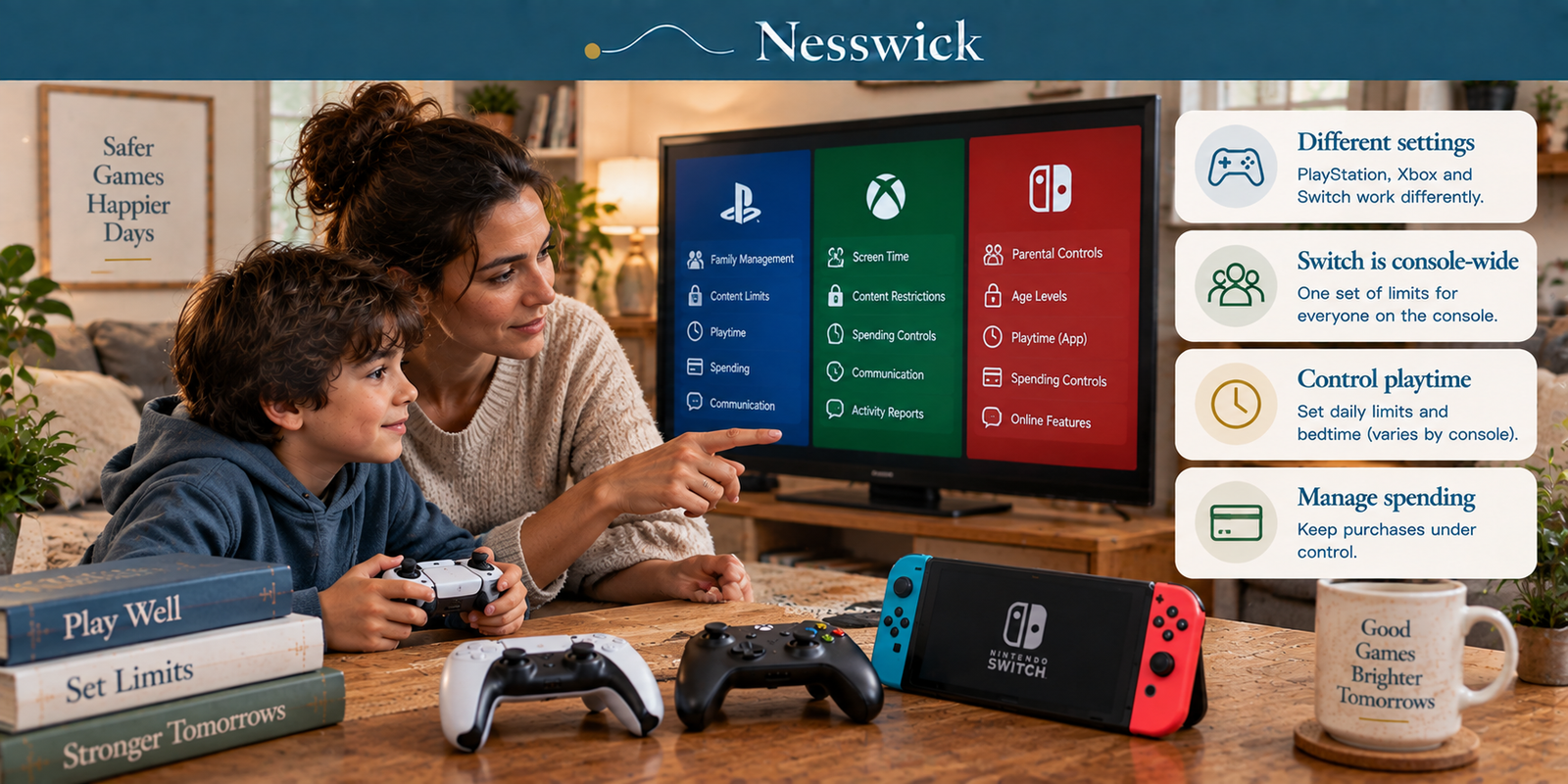
The four jobs are the same on every machine: what your child can play, how long, what they can spend, and who can talk to them. How the three platforms handle those four jobs is not the same at all, and the differences matter more than the button-pressing.
The one thing that decides whether this works in your house
On PlayStation and Xbox, controls attach to a child’s account. On Nintendo Switch, they attach to the console.
Nintendo’s own support says it plainly: “Parental Controls are generally set for the whole console – not for each individual user,” and “the same restrictions will be in place for everyone that uses the console.”
If one Switch is shared between a fifteen-year-old and a six-year-old, there is no setting that gives them different limits. You pick one restriction level and everybody in the house lives under it. Set it for the six-year-old and the teenager cannot play what they are perfectly old enough to play; set it for the teenager and it does almost nothing for the younger child.
There is no fix inside the settings. The options are a second console, an honest conversation about what the shared machine is set to, or accepting the compromise deliberately rather than discovering it later. That is not a satisfying answer, but it is the true one, and it is the first thing to know before you spend an evening in menus.
Job one: what they can play
Nintendo uses named levels rather than a rating picker. Child restricts games rated 8+ and blocks social posting and in-game communication; Pre-Teen restricts 13+; Teen restricts 17+ only, leaving communication and social sharing unrestricted. You set it on the console itself, under System Settings > Parental Controls > Parental Controls Settings, behind a PIN of four to eight digits.
PlayStation ties restrictions to each child in Family Management, reached on the console at Settings > Family and Parental Controls > Family Management, or through the web account pages.
Xbox works from ESRB ratings and lets a child request access to blocked content for a parent to approve or decline.
A note on what we are not printing: we could not verify Xbox’s current menu paths from Microsoft’s own support site, which would not load without a browser. Rather than copy a path from a third-party guide and hope, we have left it out. Microsoft’s Xbox support pages are the right place to look, and they will be current when this page is not.
Job two: how long
Xbox is the most flexible: “create screen time schedules for each child. Customize each day of the week with different time ranges,” and (the useful part) those limits “are shared across your XBOX consoles and Windows devices,” so the gaming PC and the console draw on the same budget.
PlayStation also does per-day scheduling, with “‘Playtime Duration’ and ‘Playable Hours’ for every day or specific days of the week.” Two settings worth knowing about: when time runs out you can choose “‘Notify Only’ or ‘Log Out’” (the gentler option exists), and children can send an “Ask for More Playtime” request from the console. One prerequisite catches people out: the time zone must be set on the child’s account or the schedule behaves oddly.
Nintendo does daily limits and a bedtime window: “a bedtime and morning start time, such as no gaming allowed after 9 p.m. until 8 a.m.” When the limit hits, a parent can extend it by 5, 15 or 30 minutes or an hour, disable it for the day, suspend the game or just show a notification. Nintendo’s page describes daily limits and does not describe different limits on different days, so we are not going to claim it matches the other two there.
The Nintendo catch: playtime is app-only. Nintendo says “some features (such as play time limits) can only be managed through the smart device application”, the Nintendo Switch Parental Controls app, which requires a Nintendo Account belonging to someone 18 or over. There is no way to do this from the console.
Job three: what they can spend
The three models are genuinely different, and one of them is much safer by default.
PlayStation runs a wallet with a limit, and the limit starts at zero. Children buy from the family manager’s wallet: “when your child buys content from PlayStation™Store on their account, payment is taken from the family manager’s wallet”, and the monthly spending limit defaults to 0. Nothing can be spent until an adult decides otherwise. There is also a “Require Password at Checkout” setting.
Xbox runs approvals. “Ask a Parent” sends you a notification when a child wants to buy something they cannot fund, and you can set allowances, add money and review purchase history.
Nintendo has no spending limit at all. Its own support page, answering the question directly, offers two workarounds rather than a feature: switch purchases off entirely with a Spending Restrictions checkbox, or “use a credit card or Nintendo eShop card to add a specific amount to the child’s Nintendo Account,” so the balance is the ceiling.
And here is the part that catches out every parent who has diligently set up the app: Nintendo’s spending controls are not in the app. They live in the Nintendo Account family group at accounts.nintendo.com, an entirely separate system from the PIN-protected console controls. A parent who has set up the Parental Controls app has done nothing whatsoever about purchases. Neither Sony nor Microsoft splits things this way.
Job four: who can talk to them
For most parents this is the real reason they came looking.
PlayStation can “restrict communication with other players”, “restrict viewing content created by other players” and “restrict access to web browser”, with a route for children to request exceptions in specific games.
Xbox lets you allow or block joining multiplayer games, creating and joining clubs, broadcasting, adding friends and chat, with friend requests going through “Ask a parent.”
Nintendo blocks in-game communication at the Child and Pre-Teen levels, and note that the Teen level leaves it unrestricted. On Switch 2, GameChat has its own gate: “users under the age of 16 and supervised users” need parental controls set up first, and those restrictions are “managed exclusively through the app.”
What none of them reach
Sony publishes a sentence the other two do not, and it is the most useful sentence on any of these support sites:
“Communications in Roblox are independent from the parental control settings you have selected for your PS4 or PS5 console.”
That is true of every console and every platform with its own chat system inside it: Roblox, Minecraft, Fortnite, Discord running on a phone beside the television. The console’s controls govern the console’s own communication features. They do not reach inside a game that runs its own social network.
Which is why the settings are a floor rather than a solution. The chat your child is most likely to be having is often the one the console cannot see, and the only thing that reaches it is knowing what they are playing and being someone they would tell.
Can one app just do all of this?
Short answer: no, and this is worth being specific about because it is widely implied.
We checked the three most-recommended parental control apps against their own documentation. Qustodio does not list game consoles among its supported platforms at all. Net Nanny makes no console claim; its console content is blog posts teaching parents to use the platforms’ own controls. Bark names consoles, but only for Bark Home, a separate piece of hardware that filters at the home Wi-Fi layer, blocking sites and apps and setting schedules for “every device on your home Wi-Fi.”
That is a real capability and it is not the same thing. A network filter can stop a console reaching a service. It cannot set an age rating, cap monthly spending, or approve a friend request: those live in Sony’s, Microsoft’s and Nintendo’s systems, and no third-party app manages them. A subscription bought expecting one console dashboard will not deliver one.
What to do this evening
Twenty minutes, in this order.
Start with spending, because it is the one with a bill attached and the fastest to set. On PlayStation confirm the monthly limit is where you want it. On Xbox turn on purchase approvals. On Switch, go to accounts.nintendo.com (not the app) and decide between restricting purchases or pre-loading a balance.
Then communication, because it is the one that matters most and the one people postpone.
Then ratings, which is quick.
Then time limits, last, because it is the setting most likely to start an argument and the one worth agreeing rather than imposing. On Switch you will need the app for this; on the other two you have a choice.
Then check what your child actually plays, and whether it has its own chat. If it does, that conversation is not a settings problem.
Four things parents ask
Can I set different limits for two children on one Switch? No. Nintendo’s controls apply to the console rather than the person, so everyone using that Switch gets the same restrictions. It is a genuine architectural limit, not a setting you have missed.
Do I need the phone app? On Nintendo, yes, for playtime limits and Switch 2 GameChat: Nintendo says those are app-only. On PlayStation, no: playtime can be set on the console, on the web or in the app. Xbox spans the console, its app and Microsoft’s account site.
My child asked for more time and I got a notification. Is that a loophole? It is a feature, on both PlayStation and Xbox, and arguably a good one: it turns a hard stop into a request you can say yes or no to. Whether it is useful depends on whether you want to be asked.
Do these controls cover Roblox chat? No, and Sony is the only platform that says so on an official page. Console controls govern the console’s own communication features. A game running its own chat system is outside them.


Affiliate Disclosure
Every setting in this guide is free and already on the console. Nesswick earns nothing from the steps on this page, and the section on paid apps recommends against buying one for this purpose. Current relationship: Nesswick does not currently use affiliate links in this article. Product and service references are included for editorial purposes.
Sources and Methodology
This is an official-documentation guide. No hands-on testing was performed: Nesswick did not configure these consoles to write it. Every procedure comes from Sony’s, Microsoft’s or Nintendo’s own current support pages, read on 3 September 2026.
Two disclosures about the evidence.
Xbox is under-sourced here, deliberately. Microsoft’s support articles at support.xbox.com would not render without a JavaScript-capable browser, across three locales and several articles. Rather than reproduce Xbox menu paths from a third-party guide, we have omitted them and said so. Everything stated about Xbox comes from Microsoft’s own server-rendered pages at xbox.com.
None of the three platforms publishes a “last updated” date on these pages. Console interfaces change with system updates, so treat every menu path here as accurate on the date given and verify against the platform’s own page before following it.
We also corrected a claim carried by the source draft. The suggestion that a cross-platform parental control app can give a parent a single dashboard including consoles is not supported by the vendors’ own documentation: Qustodio does not list consoles as a supported platform, Net Nanny makes no console claim, and Bark reaches consoles only through Bark Home hardware operating at the home network layer, which does not manage console-native parental controls.
General information for US readers. No parental control setting makes a child safe online, and the platforms’ own documentation says the controls have limits.
Last reviewed and verified: September 18, 2026.
Sources Referenced
- PlayStation – parental controls hub, PS5 parental controls and spending limits, play time controls, family account setup, PlayStation Family app, and the parents’ safety guide (playstation.com)
- Xbox – family hub, child account page and Xbox Family Settings app page (xbox.com). Note: support.xbox.com articles could not be retrieved
- Nintendo – parental controls setup and adjustment, parental controls overview FAQ, eShop spending restrictions and eShop spending limit FAQ, and general vs child account documentation (en-americas-support.nintendo.com)
- Qustodio, Net Nanny and Bark – own product and support documentation, consulted only to verify whether any claims console management
All verified 3 September 2026.