
Parental Controls on a Mac: What Screen Time Can and Cannot Do
Start with the Mac, not an iPhone tutorial
Screen Time is built into macOS at no additional charge. It can show app and website activity, set usage limits or schedules, and restrict content and device features. However, Mac menus are not identical to iPhone menus, and Apple has changed the Mac interface between releases. Before following any guide, check your macOS version in Apple menu > About This Mac.
The practical approach is to give the child a separate standard Mac user account, configure the restrictions available on that Mac, protect the settings with a Screen Time passcode, and then test the restrictions from the child account. A Family Sharing group helps a parent manage a child remotely; it is not required for every local Screen Time setup.
What the settings are called
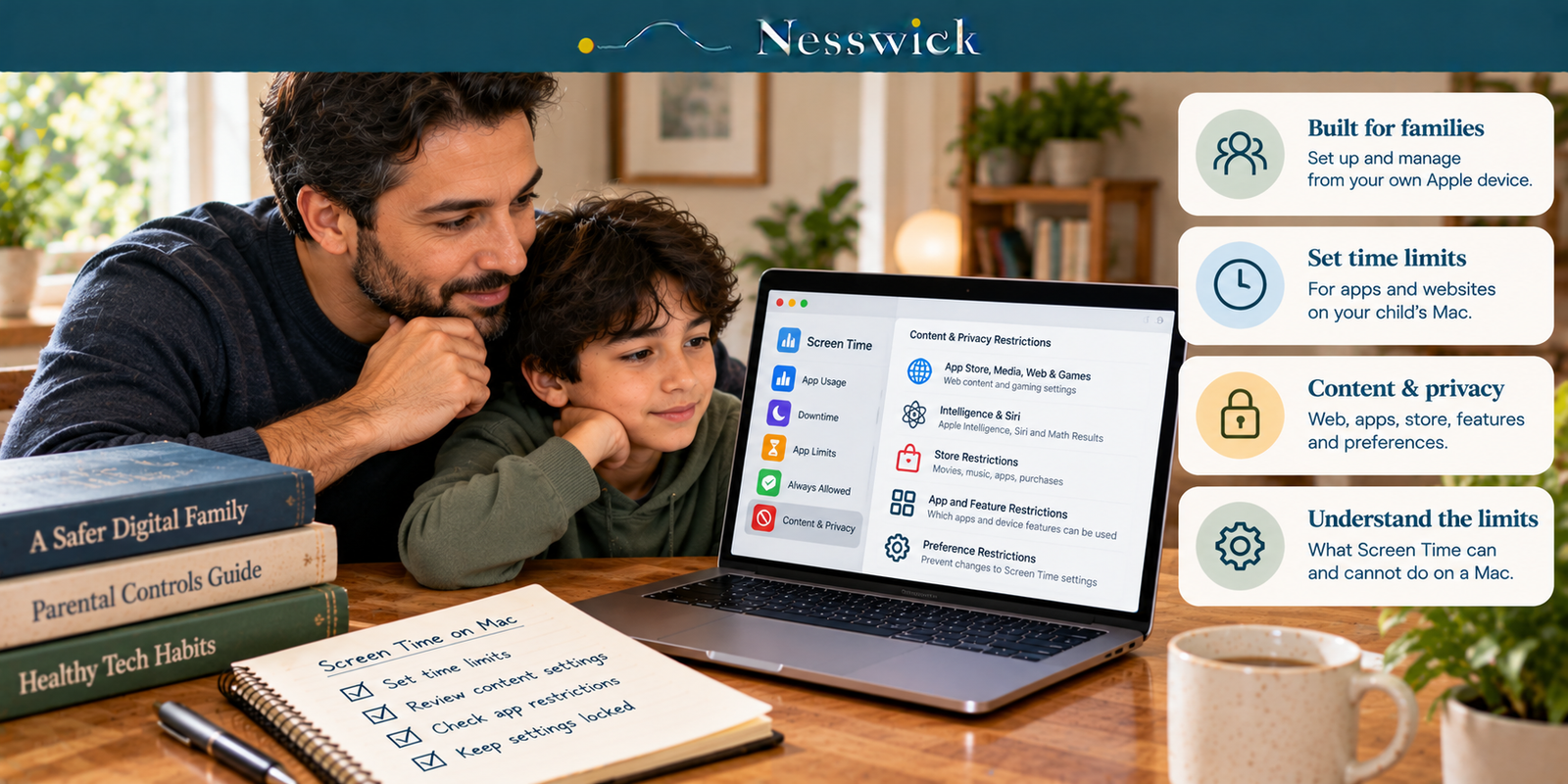
macOS 26 and other versions with the older Content & Privacy layout: Apple documents five groups under System Settings > Screen Time > Content & Privacy: App Store, Media, Web, & Games; Intelligence & Siri; Store Restrictions; App & Feature Restrictions; and Preference Restrictions. Their functions cover web and gaming restrictions, Apple Intelligence and Siri options, purchases and age ratings, allowed apps and features, and selected setting changes. Exact options can depend on the Mac, country and macOS release.
macOS 27: Apple also documents a reorganized interface. Screen Time includes Apps & Websites, Screen Time Schedules, Time Allowances, and Content & Privacy Restrictions. Under the latter, Apple describes Feature Restrictions, Content Restrictions, and Privacy Restrictions. Do not promise that a parent using macOS 27 will see the five older category names.
Apple Intelligence and Siri restrictions also differ by version and device capability. Restricting a particular Siri or AI feature is not a guarantee that every answer or piece of generated content will be filtered.
Set up a child account and protect the controls
- Create or use a separate standard macOS account for the child. Do not give the child routine access to an administrator or parent account. On a shared Mac, settings and access can differ between users.
- Open System Settings > Screen Time while signed into the appropriate account. For remote child management, use Family Sharing, add the child with their own Apple Account, and select the child in Screen Time where Apple provides that option. A parent can also configure Screen Time locally on a child’s Mac without using Family Sharing.
- Turn on the relevant Screen Time activity and restrictions, and choose a small number of rules that match your family agreement. For web access, select the available filtering or approved-sites options; for app use, set limits or time allowances as shown on your macOS version.
- Turn on Lock Screen Time Settings and choose a passcode the child does not know. On supported versions, for a child managed through Family Sharing, select the child and open Manage Screen Time to find the lock option. Apple notes that an administrator child account may need to be converted to a standard account. Preference Restrictions in the older layout address specific setting changes; they do not replace the Screen Time passcode.
- Keep a secure record of the passcode and review the settings after major macOS updates. Do not assume that saving a toggle proves the restriction works.
App limits, schedules and downtime
On macOS 26, Apple documents App Limits and Downtime. In supported App Limits screens, Block at end of limit determines whether an app is blocked when time runs out; a limit should not be described as a guaranteed lock without checking that setting and the passcode.
On macOS 27, Apple describes Time Allowances and Screen Time Schedules. Its documentation says the latest family-wide features require compatible updated Apple devices. Use the labels actually displayed on the Mac, rather than looking for an old Downtime or App Limits menu that may no longer appear.
Check the result on the child’s Mac
Use the child’s account to test a blocked website or app and try changing a protected Screen Time setting. Confirm the passcode is required where expected. Review the usage report after normal use, and check important exceptions such as always-allowed apps and contacts. Testing is especially important after an operating-system update; Nesswick has not independently tested bypass resistance.
What Mac Screen Time cannot do
Screen Time is not a universal household filter. Mac account settings do not automatically control an Android phone, a gaming console, a friend’s computer or an unrelated school-managed device. A router or network filter may help with some whole-home web access, but router controls also have limitations, especially with mobile data and devices outside the home.
A child using a parent’s unrestricted account can sidestep controls intended for the child’s account. Content filters can also make mistakes. Explain the rules to your child, review what is working, and consider paid cross-platform software only when you can identify a real gap in the built-in controls.


Affiliate Disclosure
Current relationship: Nesswick does not currently use affiliate links in this article. Product and service references are included for editorial purposes.
Sources and Methodology
This is an official-documentation guide, not a hands-on test. The macOS 26 and macOS 27 labels and features above were checked against Apple’s published Mac User Guide pages on October 14, 2026. Apple serves different documentation versions and locales, and available features depend on operating-system version, device and region. We do not claim to have tested restrictions or their resistance to circumvention. Confirm the exact controls on your family’s devices before relying on them.
Last documentation review: October 14, 2026.
Sources Referenced
- Apple Support – Change Content & Privacy settings in Screen Time on Mac
- Apple Support – Block features or content with Screen Time on Mac
- Apple Support – Change Screen Time settings on Mac (macOS 27)
- Apple Support – Set time limits for apps and websites in Screen Time on Mac
- Apple Support – Set, change or remove a Screen Time passcode on Mac
- Apple Support – Change Screen Time settings on Mac (macOS Tahoe 26)
- Apple Support – Manage game restrictions on Mac (Games User Guide)