
Parental Controls on Windows: Setting Up Microsoft Family Safety, and the Edge Catch
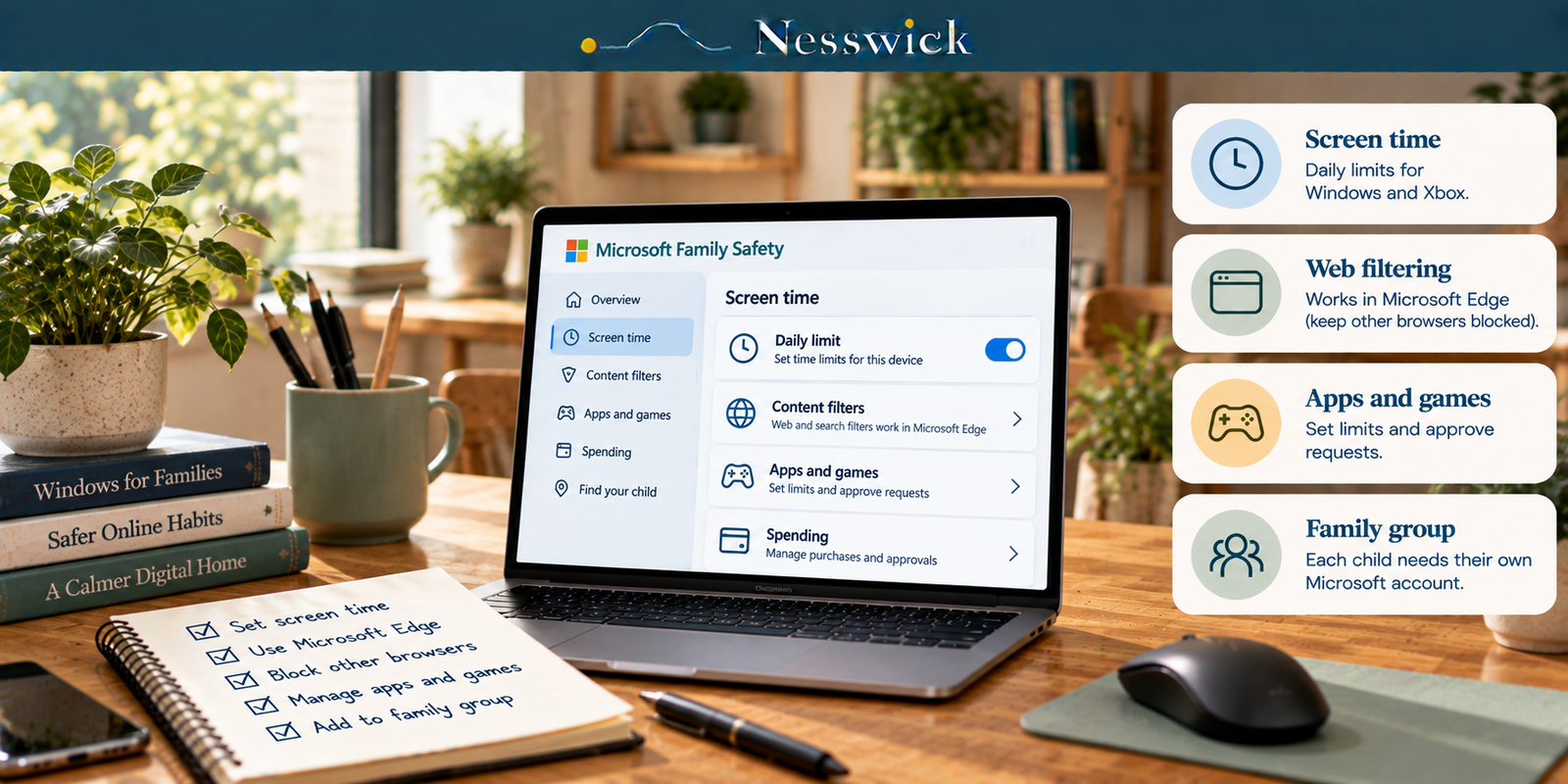
Windows has capable parental controls through Microsoft Family Safety, and the core service is free with a Microsoft account. The important browser limitation remains: Microsoft’s web and search filtering works only in supported browsers, and Microsoft’s current support page identifies Edge as the supported browser.
When Filter inappropriate websites and searches is turned on, Microsoft says unsupported browsers are blocked so the filter cannot simply be bypassed. An organiser can manually unblock a browser, but web and search filtering will not extend into that unsupported browser.
That means the practical rule is simple: if Microsoft’s web filter matters in your household, leave unsupported browsers blocked and test the child’s account after setup.
Before you start: build the family group
Set up the family group at account.microsoft.com/family. Microsoft uses two roles: Organizer and Member. Organizers can add or remove people, manage limits and permissions, and view activity when reporting is enabled. A child will normally be added as a Member.
The child should use their own Microsoft account. On each Windows PC you want Family Safety to manage, add the child’s Microsoft account to that device and have the child sign in. Microsoft specifically advises making the child’s Windows account a standard user; Family Safety features may not work properly if the child is an administrator.
Do not assume the controls automatically follow the child to every Windows computer. The relevant device must be connected to the family group for screen-time and reporting features to work there.
Screen time
Family Safety can set device screen-time schedules for connected Windows and Xbox devices. Schedules can be adjusted by day. Microsoft also supports app and game limits, including different limits on different days.
Members can request more time, and organizers can manage limits and exceptions through Family Safety. Start with a small number of rules that you can explain and maintain rather than building a complicated schedule on day one.
Apps, games and age filters
Organizers can block individual apps, features and games, and can set app and game time limits. Microsoft also provides age-based content filtering for apps and games on Windows and Xbox.
If web filtering is enabled, Microsoft’s current documentation says unsupported browsers are blocked by default. You can see or change those browser blocks in the app and game controls. If you manually unblock Chrome, Firefox or another unsupported browser, do not expect Microsoft’s web and search filter to operate inside it.
Website time limits are not the same as app time limits. Microsoft’s current app-limit documentation says time limits do not work directly on websites.
The Edge catch: what the web filter actually covers
Microsoft’s current documentation says Family Safety web and search filtering works in supported browsers while the family member is signed in to their Microsoft account. The same page identifies the supported browser as currently Edge.
The filter can block inappropriate sites and searches, block or allow specific sites, and restrict browsing to an approved list. With inappropriate-site filtering enabled, unsupported browsers are blocked unless an organizer manually unblocks them.
Web and search activity reporting also depends on the member using a supported browser while signed in. If your household chooses to use an unsupported browser, Family Safety’s device time, app/game and spending tools can still be useful, but Microsoft’s web filtering will not cover browsing inside that unsupported browser.
Spending
Family organizers can add money to a child’s Microsoft account, review spending, receive purchase requests and require approval for purchases. The account balance can act as a practical spending ceiling because it cannot be overdrawn. Microsoft also offers purchase notifications and spending activity.
A limitation worth knowing: purchases made inside an app through a non-Microsoft billing platform are not covered by Microsoft’s Ask-to-Buy or Add Funds controls.
Activity reporting
Activity reporting is available for connected Family Safety devices and can show app/game use, screen time, and supported-browser web/search activity. Organizers can view reports on the web or in the Family Safety app.
For the United States, Microsoft also notes that children age 13 or older may be able to opt out of sharing usage data with adults in their family, in which case consent must be regained before reporting can be turned back on.
What Windows controls do not cover
Unsupported browsers for web filtering. Microsoft’s web/search filtering currently relies on Edge. Unsupported browsers are blocked while the filter is enabled unless an organizer deliberately unblocks them.
Unconnected devices. Screen-time and activity features depend on the relevant device being connected to the family group.
Other ecosystems. Family Safety has capabilities on Windows, Xbox and Android, but it does not replace Apple’s Screen Time controls on a Mac or iPhone. Mixed-device households may still need more than one parental-control system.
A parent’s account. Controls are tied to the managed family member and connected devices. A child should not be given access to an unrestricted parent or administrator account.
A practical setup order
- Create the Microsoft family group and add the child as a Member.
- Add the child’s Microsoft account to the Windows PC and keep it as a standard user.
- Connect the device to Family Safety and confirm it appears under the child’s account.
- Turn on activity reporting and review what is actually being used.
- Add device and app/game limits that match your household rules.
- If you need web filtering, enable it and keep unsupported browsers blocked.
- Sign into the child’s Windows account and test the limits, browser blocking and website filtering yourself.


Affiliate Disclosure
Current relationship: Nesswick does not currently use affiliate links in this article. Product and service references are included for editorial purposes.
Sources and Methodology
This guide was checked against Microsoft’s current Family Safety support documentation on October 16, 2026. It is an Official-Documentation Guide; Nesswick has not tested bypass resistance or independently measured enforcement. The corrected version distinguishes supported-browser filtering from browser blocking, adds Microsoft’s standard-user requirement for a child’s Windows account, removes the unsupported general claim about emailed activity summaries, and clarifies that devices must be connected to the family group for relevant controls and reporting.
Last reviewed and verified: October 16, 2026.
Sources Referenced
- Microsoft – Set up Microsoft Family Safety
- Microsoft – Filter websites and searches using Microsoft Family Safety
- Microsoft – Roles, permissions and data sharing in Family Safety
- Microsoft – Add people to your family group
- Microsoft – How to connect a device to a Microsoft account
- Microsoft – Set screen time limits across devices
- Microsoft – Set app and game limits
- Microsoft – Block or unblock apps with Microsoft Family Safety
- Microsoft – View device and app use with Family Safety activity reporting
- Microsoft – Spending limits in Family Safety
- Microsoft – Troubleshooting Microsoft Family Safety