
How to Back Up Your Computer
This guide uses Apple’s and Microsoft’s own documentation. Nesswick has not tested any third-party backup software and does not recommend any. Verified 25 September 2026.
Start at the wrong end on purpose. Forget backing up for a moment and imagine the restore.
Your laptop is gone: stolen from a car, or simply dead. Tomorrow you have a replacement. What do you actually get back, and how long does it take? Everyone’s answer to that is more honest than their answer to “do you back up?”, because the second question is about intention and the first is about arrangements.
The two built-in tools give quite different answers, and that is the part worth understanding before any clicking.
The difference that matters
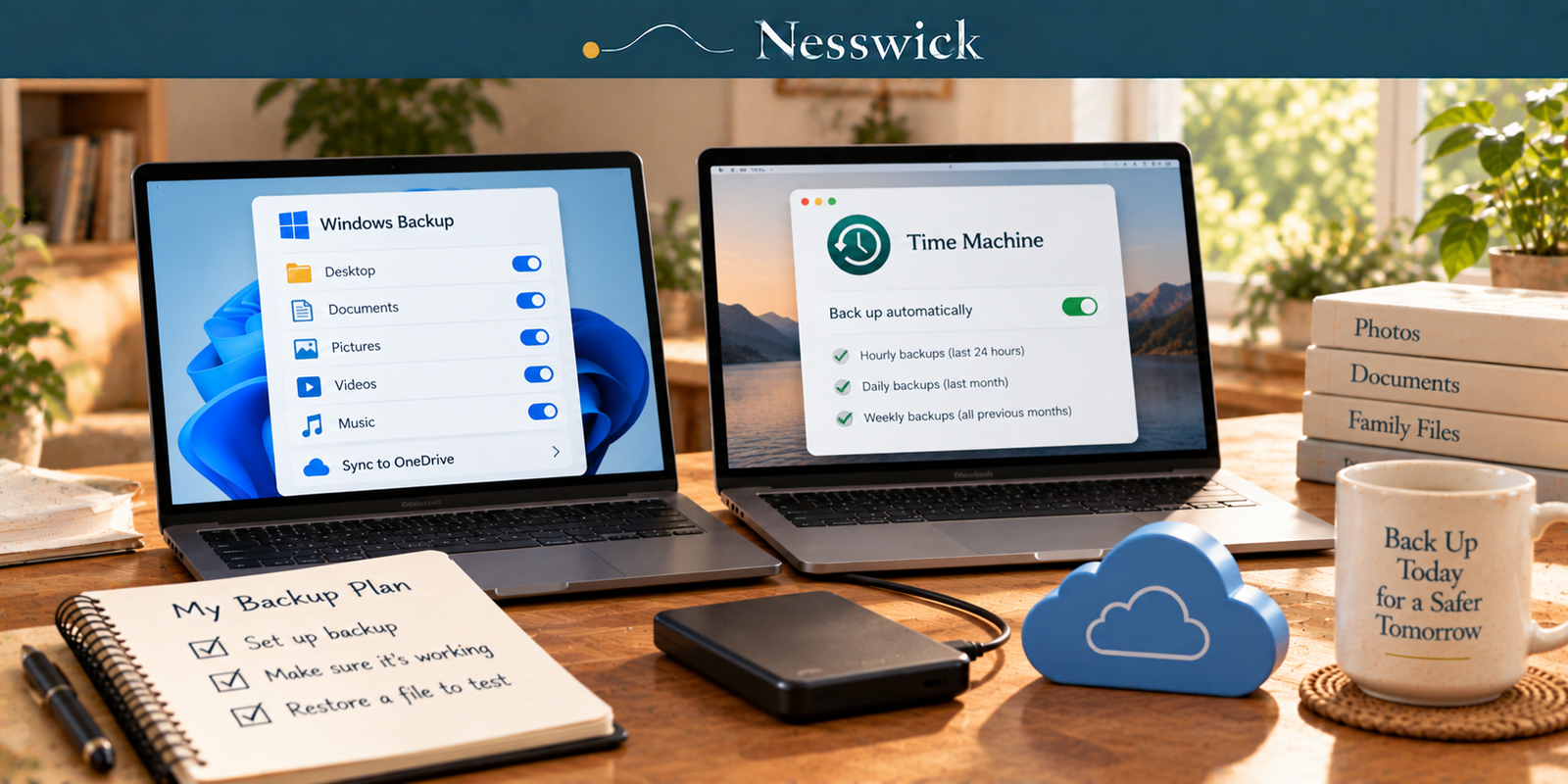
On a Mac, Time Machine keeps history. Apple describes what it retains as “hourly backups for the past 24 hours, daily backups for the past month, and weekly backups for all previous months,” and describes what that buys you: you can “recover your files, including older files, files that have been deleted, or files that are no longer accessible.”
That last clause is the whole point. You can go back to a version of a document from three weeks ago, or retrieve something you deleted in June.
On Windows, the tool now called Windows Backup does something else. Microsoft’s own description is that it “syncs the folders you specify to your OneDrive account, making them instantly accessible on all computers that you use with this Microsoft account,” and it covers your Desktop, Documents, Pictures, Videos and Music folders, plus installed apps, accessibility settings, Wi-Fi networks and passwords, personalisation and language preferences. A free Microsoft account comes with “5 GB of OneDrive cloud storage.”
That is genuinely useful: it is a very good way to arrive at a new PC and find your things already there. But it is a sync of current files to an account, on an allowance most families’ photo libraries exceed several times over. It is not the same product as a versioned local backup, and Windows users are often surprised by that on the day they need last month’s version of something.
Neither tool is bad. They are just not the same tool, and knowing which one you have is the difference between a plan and a hope.
On a Mac: Time Machine
You need an external drive. Apple’s own requirement is “a storage device with at least twice the storage capacity of your Mac,” and it is specific that the drive should be used “only for Time Machine backups, not for storage of other files.” Do not put your archive of holiday videos on the backup disk.
Plug the drive in, then, in Apple’s words:
“From the Apple menu in the corner of your screen, choose System Settings.” “Click General in the sidebar, then click Time Machine on the right.” “Click Add Backup Disk, or click the Add button (+).” “Select your connected storage device and click Set Up Disk.”
The first backup takes a long time: hours, sometimes overnight, and that is normal. After that it runs on its own and covers, in Apple’s description, “all of your files, including apps, music, photos, email, and documents.”
Those steps reflect the current macOS layout. If your Mac is older, the same settings live in System Preferences rather than System Settings.
On Windows: what is built in, honestly
Open Settings, then Accounts, then Windows backup. Choose the folders you want and let it sync them to OneDrive. That gets your Desktop, Documents, Pictures, Videos and Music into an account, and your settings and app list with them.
Watch the 5 GB. It is enough for documents and nowhere near enough for photographs, and the moment it fills, the sync stops being a plan and becomes a partial one. Either pay for more space or keep the photos somewhere else deliberately.
For a versioned local backup to a drive (the Windows equivalent of what Time Machine does) the tool is File History, and here we have to be straight with you. Microsoft’s current Windows Backup documentation does not present File History as part of it, and we could not verify current, authoritative File History instructions from Microsoft during our checks. So we are not giving you steps for it. Guides that print a path for this are often quoting an older Windows layout, and following a stale path in a settings app is a good way to conclude that a feature has been removed when it has not. Search Microsoft’s own support site for File History on your Windows version, and use what it tells you.
That gap is real and we would rather say so.
What neither tool covers
Your phone. Both of these back up a computer. If your photographs live on a phone and are only visible on the computer through an app, they are not in the backup: they are being displayed, not stored.
Anything you keep only in a cloud service. Files that exist in a web app and were never on the machine are not in a backup of the machine.
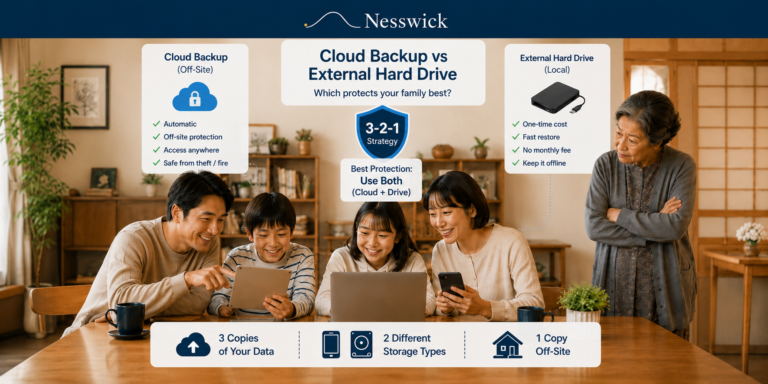
The backup drive itself. It is a single physical object in the same house as the computer. That is what the third copy in the 3-2-1 rule is for, and it is why a drive that lives in a drawer at a relative’s house is worth the inconvenience.
Four questions
How often should this run? It should not be a decision. Both tools run on their own once configured. The failure mode is not backing up too rarely, it is a drive that has been unplugged since March.
Can I use the same drive for backups and files? Apple explicitly says not to for Time Machine. As a general matter it is a bad idea anyway: a drive doing two jobs fails at both simultaneously.
Is OneDrive or iCloud enough on its own? It is one location, and for the most part it is a sync rather than a versioned backup. It is a reasonable second copy and a poor only copy.
Do I need to buy backup software? Nothing in this article requires it. We have not tested any, so we name none.
Then do the one thing almost nobody does
Delete a file you can afford to lose. Wait a day. Get it back.
On a Mac, open Time Machine and step back to a date before you deleted it. On Windows, open the folder in OneDrive and look for the file, or its version history.
If you cannot retrieve it in a few minutes, you have found out something valuable at no cost. That is the entire test, and it is worth more than any amount of confidence about what you think is switched on.


Affiliate Disclosure
No affiliate disclosure applies. Both tools in this guide are built in and free, no software or drive brand is recommended, and Nesswick is not currently enrolled in any affiliate programme.
Current relationship: Nesswick does not currently use affiliate links in this article. Product and service references are included for editorial purposes.
Sources and Methodology
This is an official-documentation guide. No hands-on testing was performed and no third-party backup software was installed or evaluated. Every procedure is quoted from Apple’s or Microsoft’s own support documentation, and the setup steps are reproduced in the vendor’s own words rather than paraphrased, so that a reader can match them against the screen in front of them.
Where a procedure could not be verified from the vendor, we say so and give none. Microsoft’s Windows Backup documentation does not present File History as part of Windows Backup, and we could not retrieve current authoritative File History instructions during verification; the article states that plainly and directs readers to Microsoft rather than reproducing a path from a third-party guide. Menu paths on both platforms change between releases (the macOS steps here reflect the current System Settings layout) so verify against your own machine.
We name no external drive brand and no backup application, because we have tested none.
General information for US readers. A backup you have never restored from is not yet known to work.
Sources Referenced
- Apple: How to back up your Mac, including what Time Machine backs up and what it can recover, support.apple.com, read 25 September 2026
- Apple: Time Machine setup, retention schedule and disk requirements, support.apple.com, read 25 September 2026
- Microsoft: Back up your Windows PC, including the Settings path, the scope of Windows Backup, OneDrive folder syncing and the 5 GB free allowance, support.microsoft.com, read 25 September 2026
All verified 25 September 2026.
Editorial verification / review date: 25 September 2026.